WSL (Windows Subsystem for Linux)

Embrace the Penguin, Right from Your Windows Desktop!

Experience the power of Linux within your Windows environment.

The Windows Subsystem for Linux (WSL) allows you to run a GNU/Linux environment directly on your Windows machine, without the overhead of a virtual machine. Whether you're a developer seeking a powerful toolset or a tech enthusiast exploring new horizons, WSL integrates seamlessly with your Windows OS, bringing the best of both worlds together. Dive into a world where you can enjoy the flexibility of Linux commands and applications right alongside your favorite Windows tools.

Kali & Plasma Desktop

Store

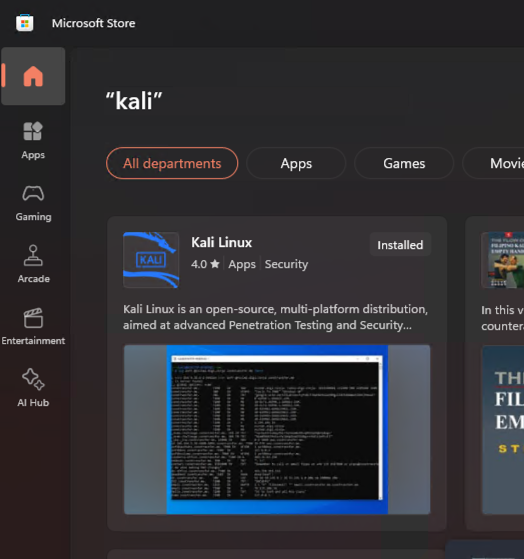
Download Kali from the Microsoft Store
No imagen

Powershell

Open a powershell and install wsl

copy
wsl --install
wsl --list --verbose

#Open kali image from the windows menu

#If you encounter issues with Kali and it doesn’t give you a shell, uninstall it, update, and then install WSL.

wsl --unregister Kali-Linux #copy the name from wsl --list
wsl --update
wsl --install kali-linux


Kex Installations

After update kali, install the desktop

copy
sudo apt install kali-win-kex
#for the default desktop - or also kex --esm --wtstart
kex 

#Install plasma 
sudo apt install kali-desktop-kde


sudo update-alternatives --config x-session-manager
There are 3 choices for the alternative x-session-manager (providing /usr/bin/x-session-manager).

  Selection    Path                      Priority   Status
------------------------------------------------------------
  0            /usr/bin/startxfce4        50        auto mode
* 1            /usr/bin/startplasma-x11   40        manual mode
  2            /usr/bin/startxfce4        50        manual mode
  3            /usr/bin/xfce4-session     40        manual mode


kex --esm --wtstart 


Plasma Desktop

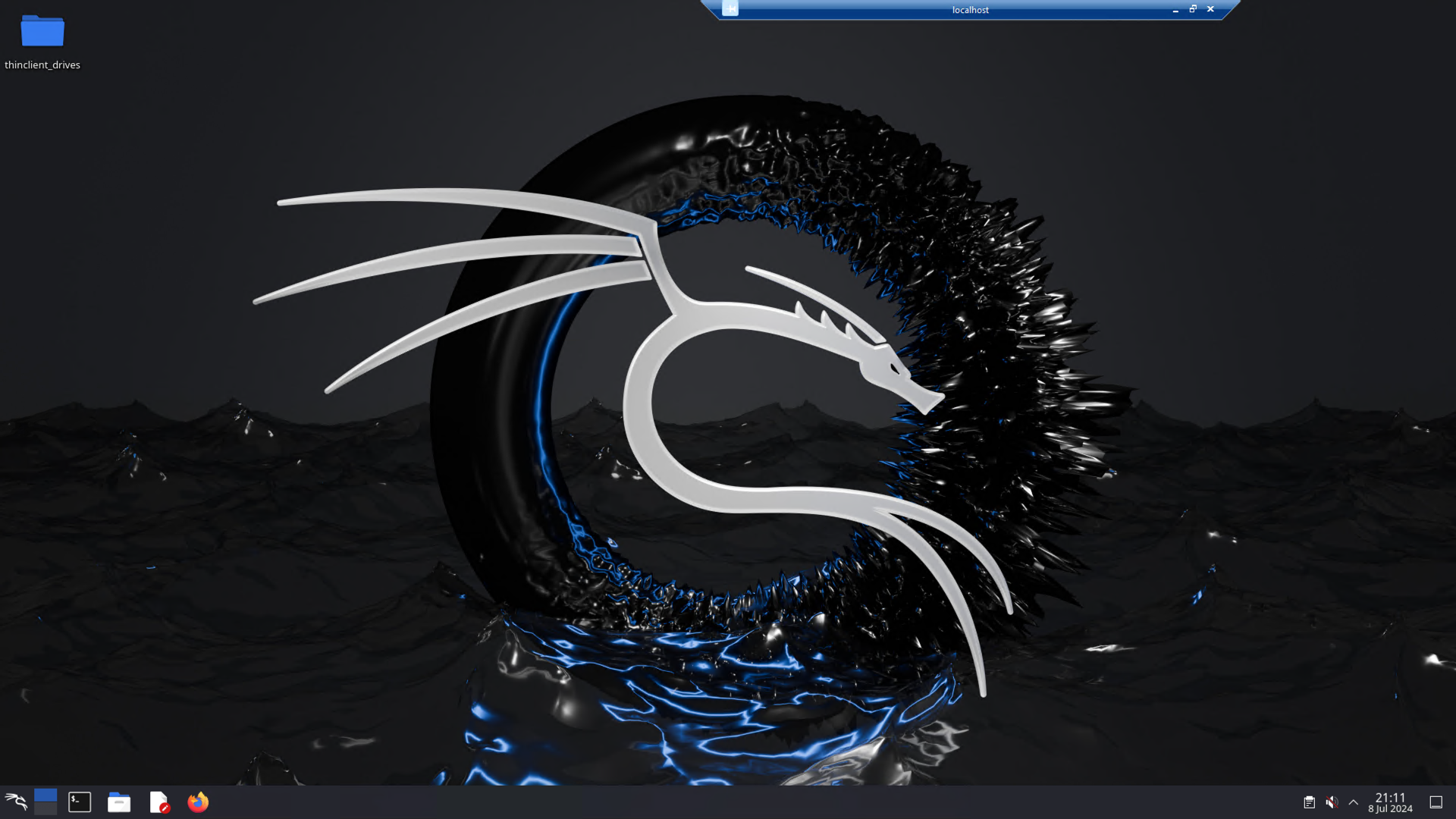
That should open kali plasma desktop
No imagen

Step 1: Verify Windows Server Version

Ensure you are running at least Windows Server 2019 version 1809 or later. Use the command winver to check.

Step 2: Enable WSL Features

Open PowerShell as Administrator and run:
dism.exe /online /enable-feature /featurename:Microsoft-Windows-Subsystem-Linux /all /norestart
If your hardware supports virtualization and you want WSL 2, also run:
dism.exe /online /enable-feature /featurename:VirtualMachinePlatform /all /norestart
Restart the server after enabling these features.

Step 3: Download and Install a Linux Distribution

Since Microsoft Store is unavailable on Windows Server, download the desired Linux distribution manually:
  • Ubuntu 20.04: Download
  • Kali Linux: Download
  • kali linux store link: https://apps.microsoft.com/detail/9pkr34tncv07?hl=en-US&gl=US
Install the downloaded package using:
Add-AppxPackage -Path .\package-name.appx

Step 4: Initialize and Use WSL

Launch the installed Linux distribution by typing wsl in PowerShell. Follow the prompts to complete the setup.

Step 5: Optional - Upgrade to WSL 2

If your hardware supports virtualization, download and install the WSL 2 kernel update: Download Kernel. Then, set WSL 2 as the default version:
wsl --set-default-version 2
Convert existing distributions to WSL 2:
wsl --set-version  2

Step 6: Verify Installation

List installed distributions using:
wsl -l -v
Ensure the desired Linux distribution is listed and configured properly.


Install Docker with Chocolatey

1. Ensure Chocolatey is installed on your system. If not, use the following command:
Set-ExecutionPolicy Bypass -Scope Process -Force; [System.Net.ServicePointManager]::SecurityProtocol = [System.Net.ServicePointManager]::SecurityProtocol -bor 3072; Invoke-Expression ((New-Object System.Net.WebClient).DownloadString('https://chocolatey.org/install.ps1'))

2. Install Docker using Chocolatey:
choco install docker -y

3. (Optional) Install Docker Compose:
choco install docker-compose -y

Start Docker Daemon

1. Open a new PowerShell or Command Prompt as Administrator.

2. Start the Docker Daemon by running:
dockerd

3. Verify Docker is running:
docker --version
docker run hello-world