
This guide explains how to isolate a virtual machine (VM) in Proxmox by assigning it a VLAN tag over a trunk port using UniFi switches. The goal is to allow the VM to have internet access while being isolated from the local network (LAN).
Steps:
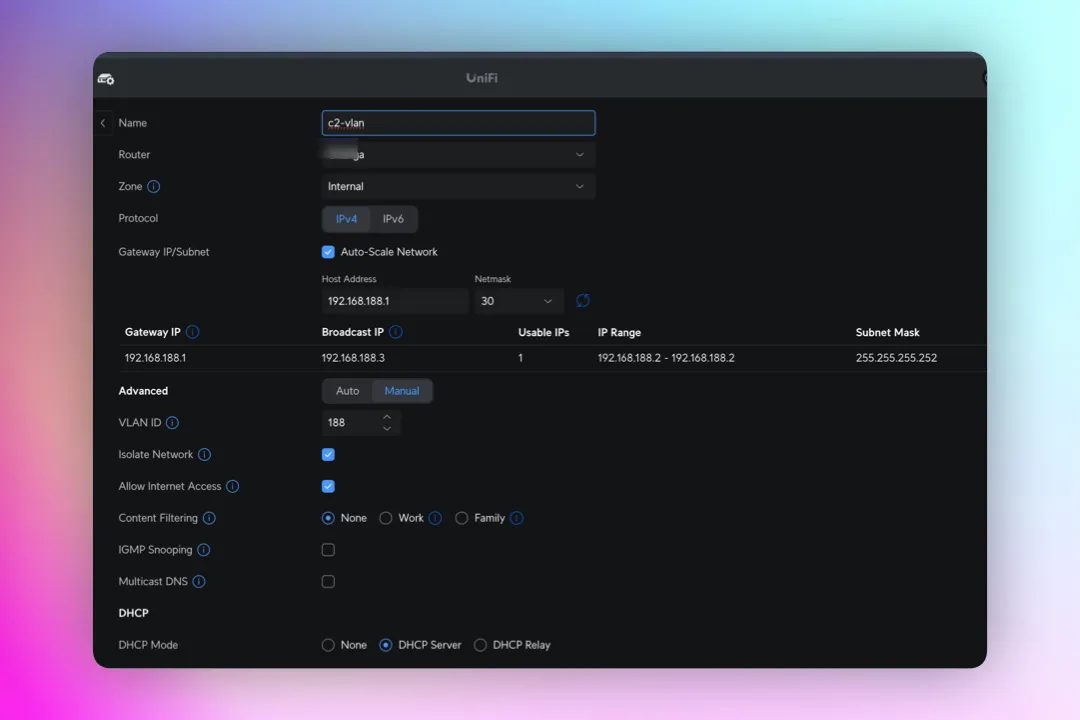
1. Create a new VLAN network with VLAN ID 188 in UniFi
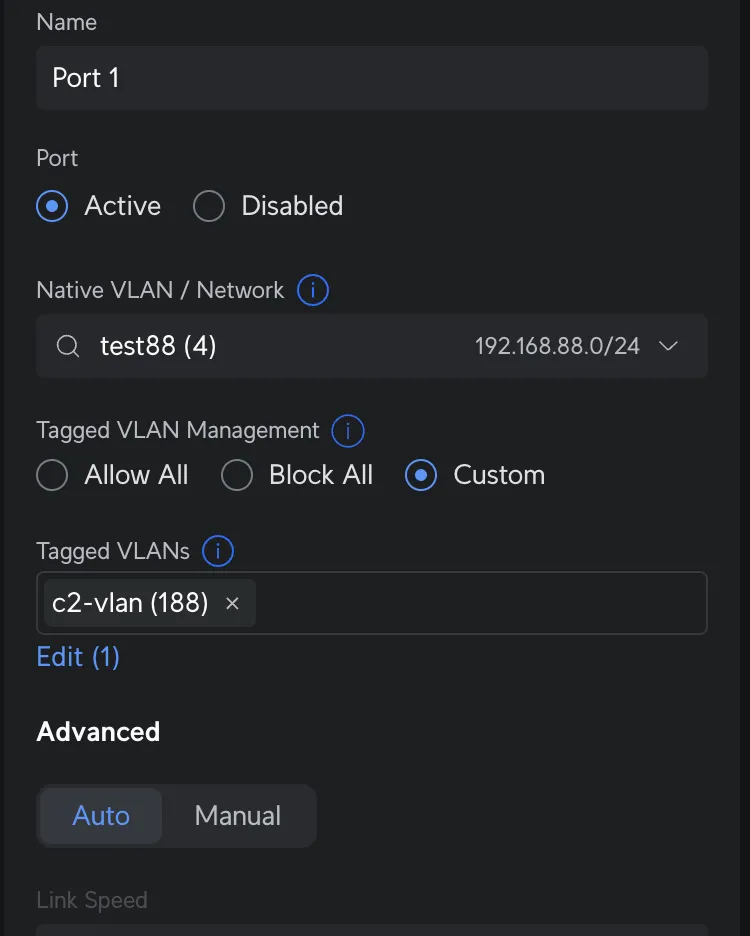
2. Allow VLAN 188 on the Switch Port Connected to Proxmox
Edit the port profile where Proxmox is physically connected. Allow VLAN 188 as a tagged VLAN.
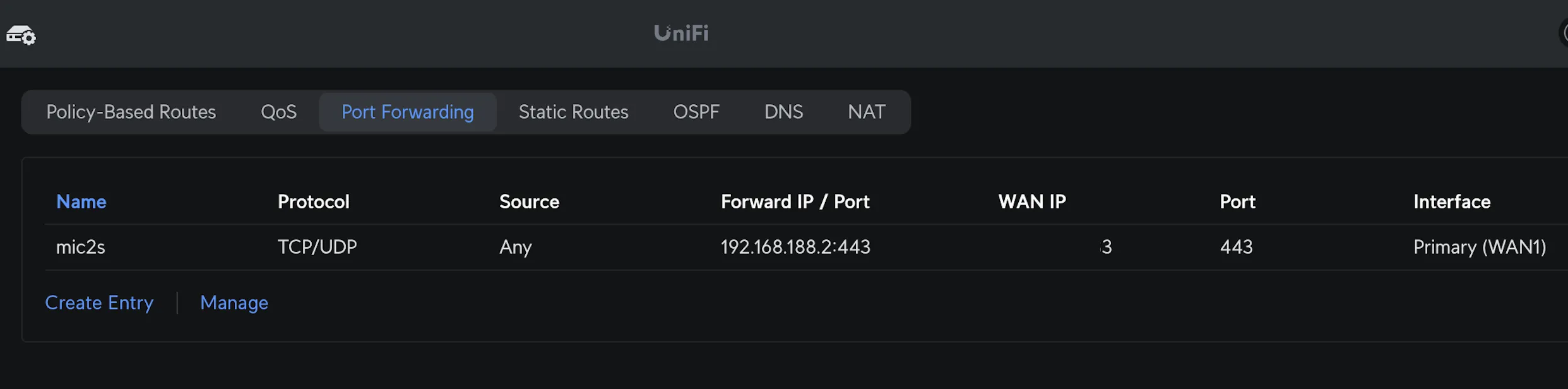
3. Configure Port Forwarding
Set up a port forwarding rule to direct traffic from the internet to your VM on VLAN 188.
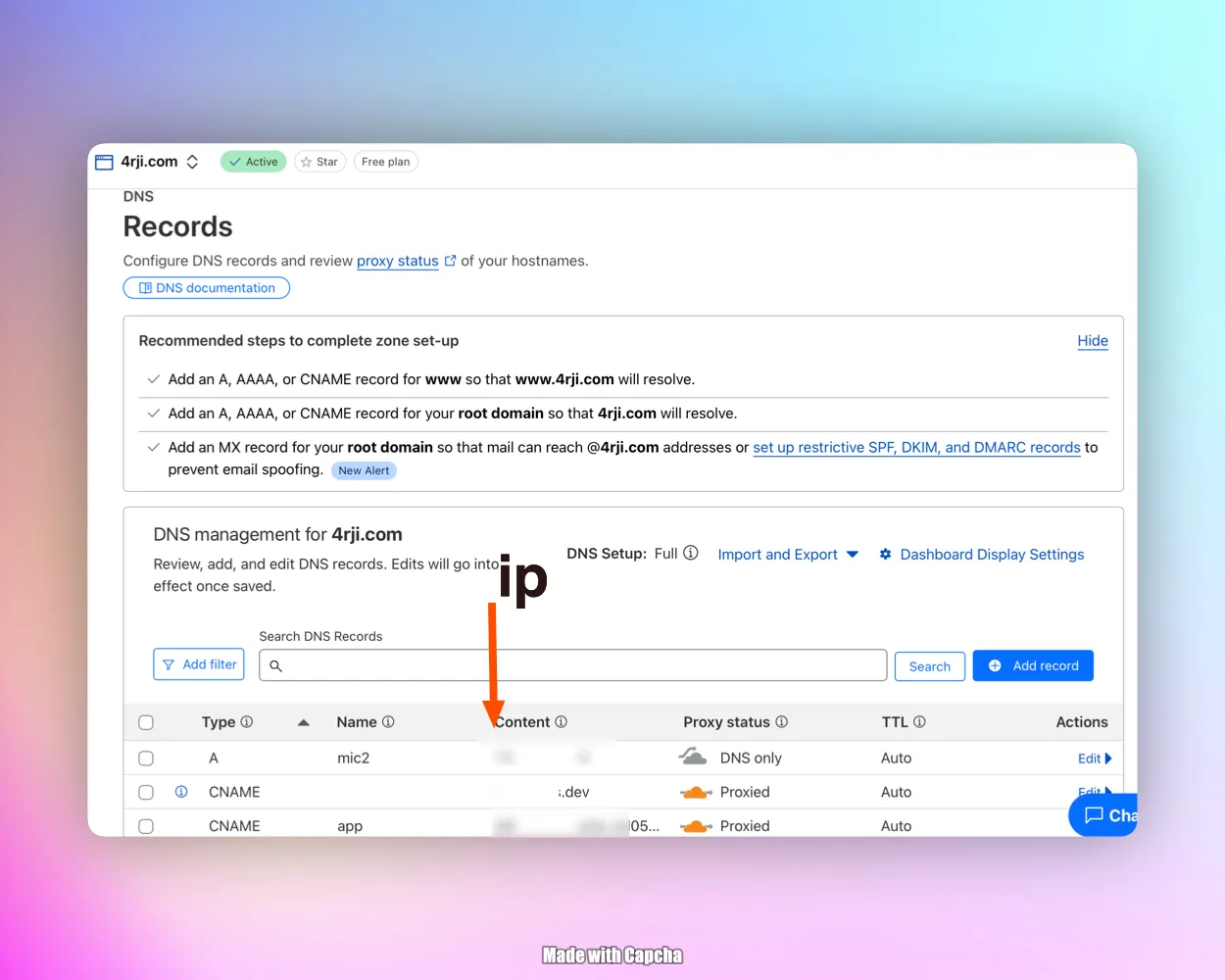
4. Update DNS A Record
Configure your domain's A record in Cloudflare (or other DNS providers) to point to your public IP address, which forwards to your VM.
5. Assign VLAN Tag in Proxmox
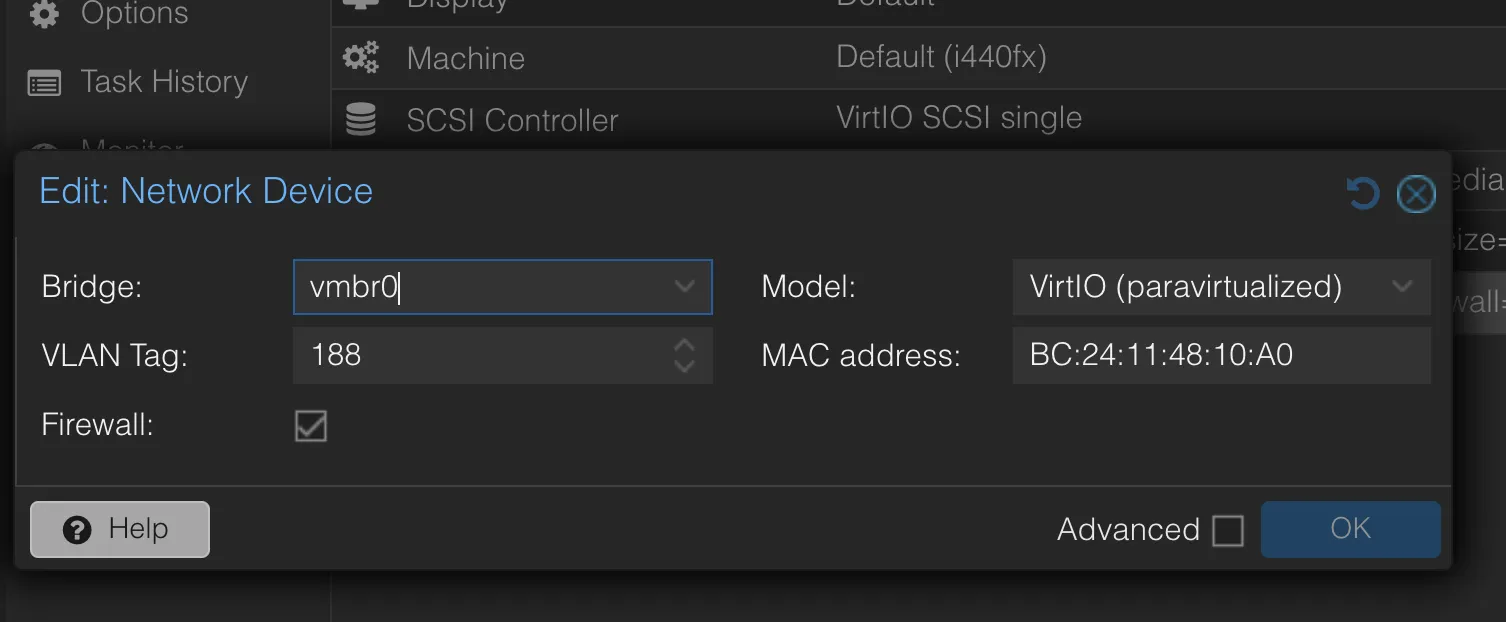
Edit the VM's network device settings in Proxmox:
- Set Bridge to
vmbr0(or your default bridge). - Set VLAN Tag to
188. - Model: VirtIO (recommended).
This allows the VM to receive an IP address from the VLAN 188 network.
Conclusion
By using VLAN tagging and trunk ports, you can isolate VMs in Proxmox easily while still providing them internet access. This setup improves security and network segmentation without needing extra physical interfaces.