Analyzing Windows Artifacts
A step-by-step guide to parsing, extracting, and analyzing Windows Registry hives, event logs, and autorun files using Eric Zimmerman's forensic tools and Sysinternals utilities.
Quick Navigation
-
1
Export Autoruns to CSV
First, create a temporary directory and execute
autorunsc(the command line version of Sysinternals Autoruns) with the-cswitch to export all autoruns information in CSV format.mkdir c:\tmp autorunsc -c > c:\tmp\autorun.csv -
2
Load CSV in Timeline Explorer
Launch Timeline Explorer simply by running its name in the command prompt, then open the newly created CSV file (
c:\tmp\autorun.csv).timelineexplorer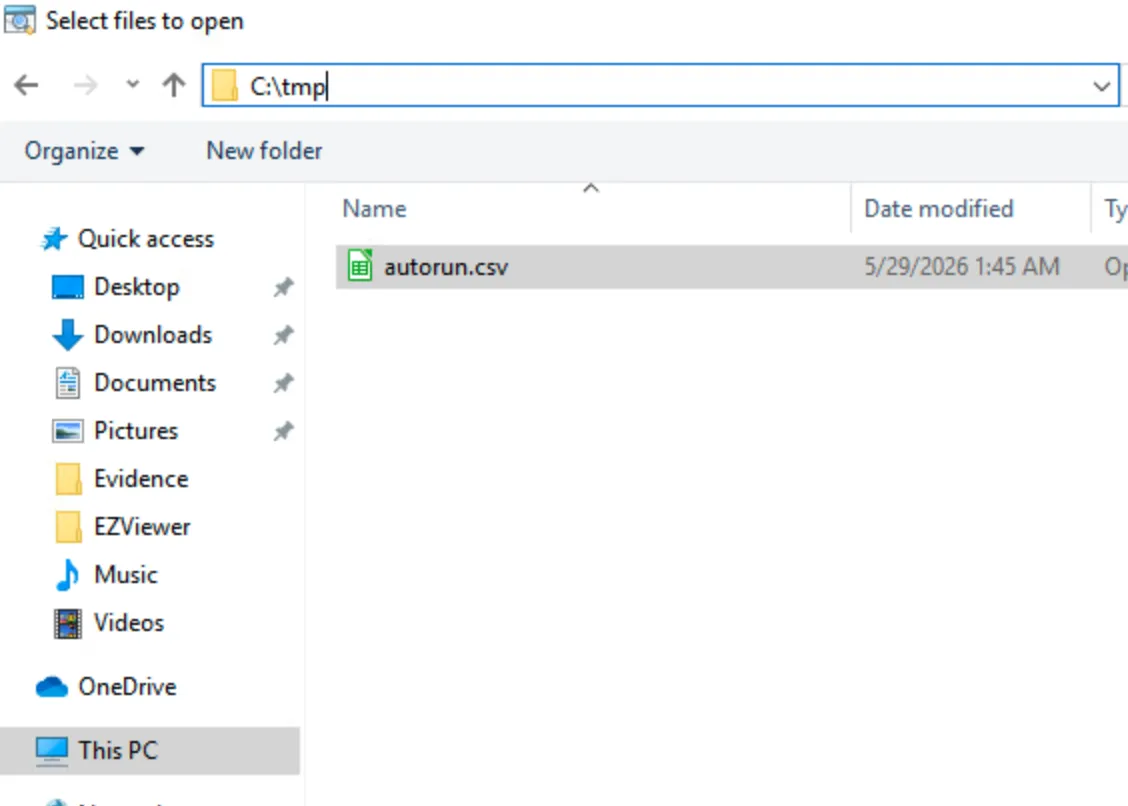
-
3
Search for "shell"
Use the search filter inside Timeline Explorer to look for references to
shell, which can highlight command line shells, powershell executions, or persistence mechanisms.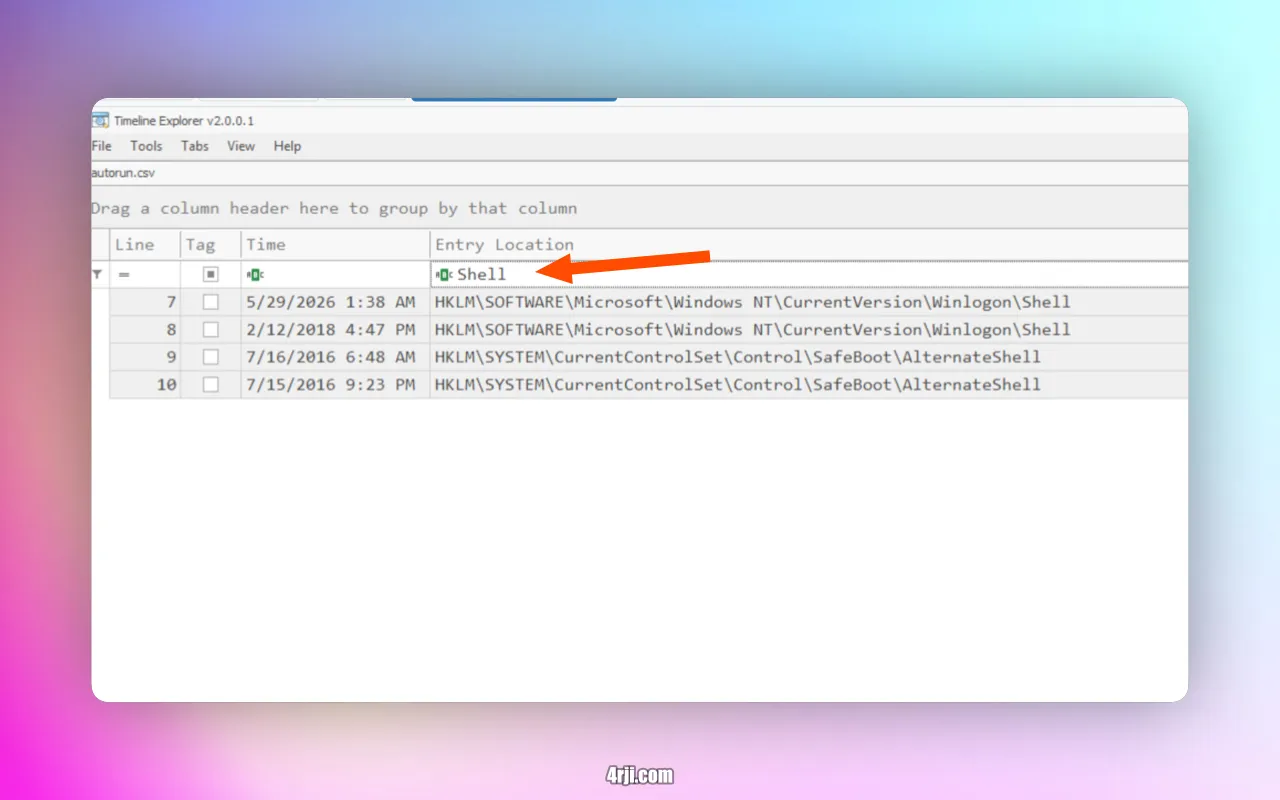
-
4
Scan User Profiles with Sigcheck
To further investigate potential persistence or unauthorized binaries, run
sigcheckto scan theC:\Usersfolder recursively. The flags check for unsigned (-u) executable files (-e) across all subdirectories (-s).sigcheck -u -e -s c:\users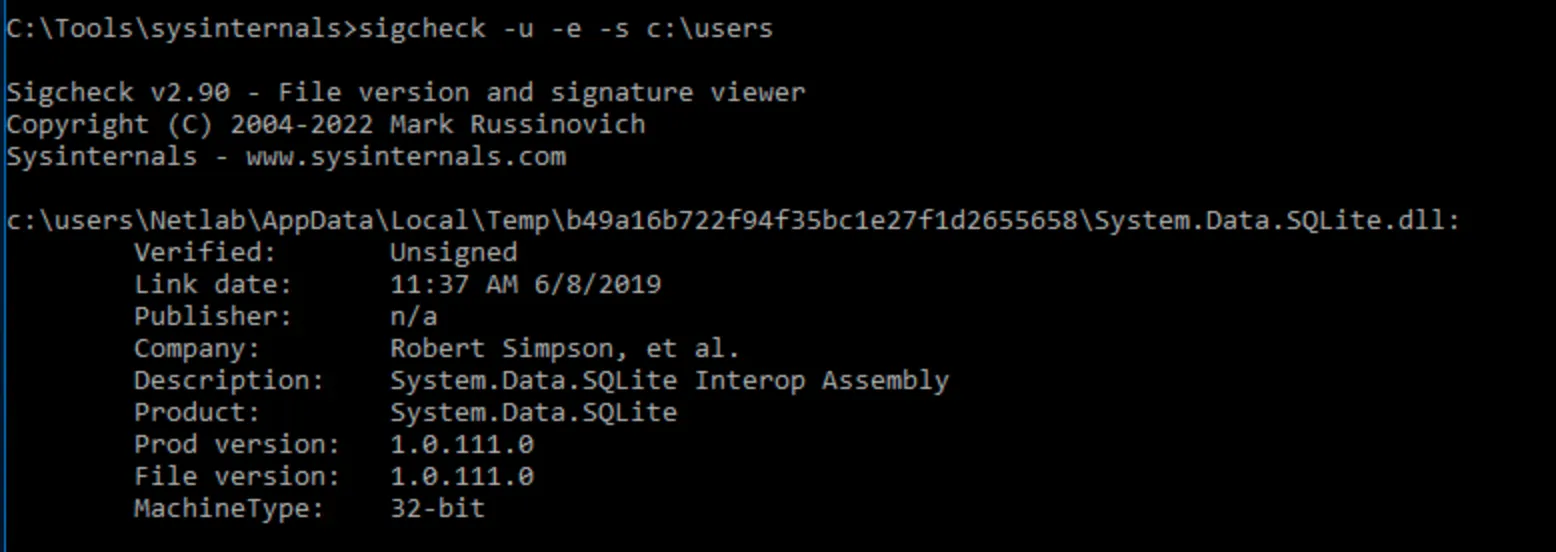
-
5
Launch Registry Explorer
Navigate to Registry Explorer directory at
C:\Tools\EricZimmerman\RegistryExplorerand open the application.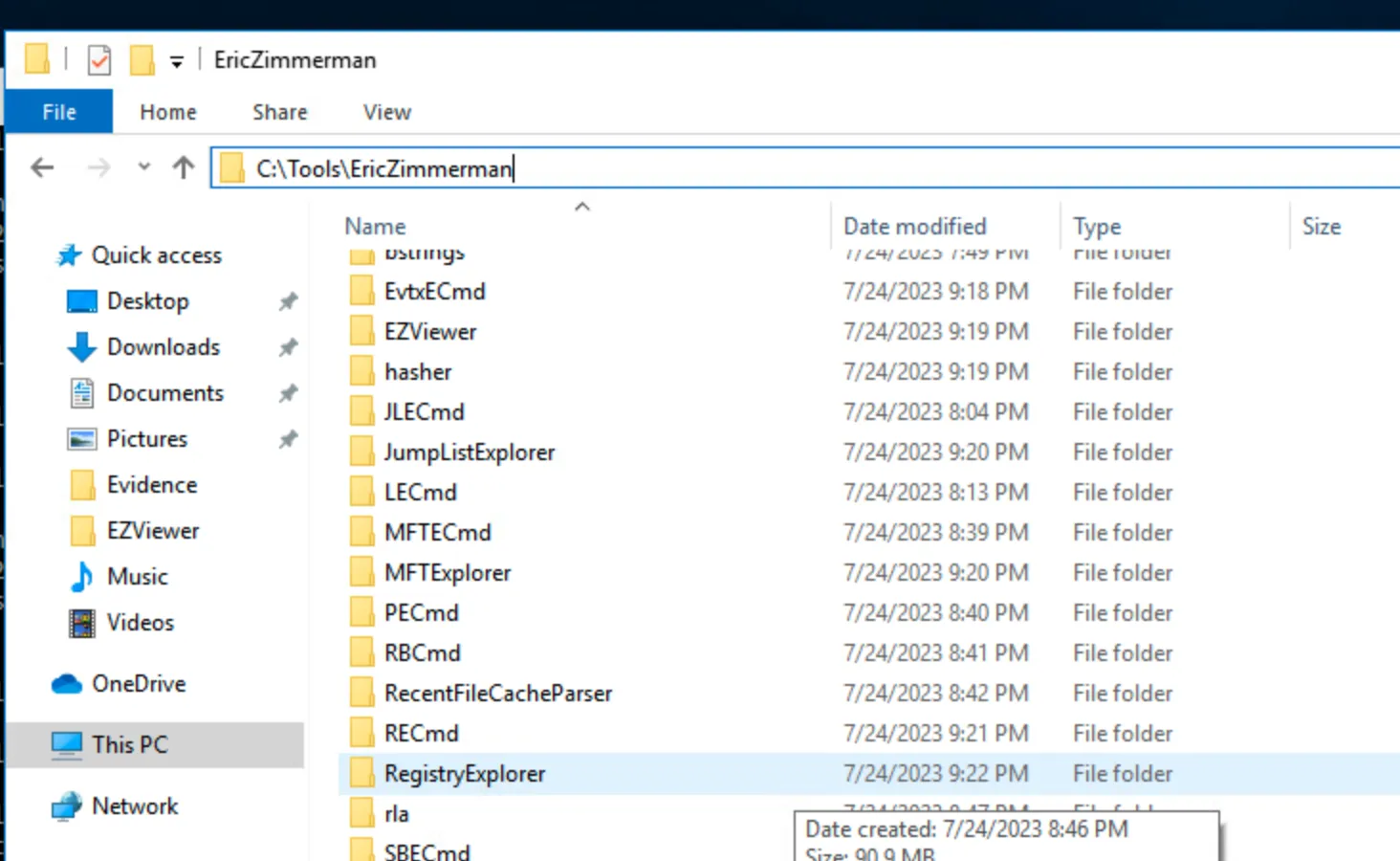
-
6
Load the SOFTWARE Registry Hive
Go to the top menu and select File > Load hive. Load the
SOFTWAREhive file from the Windows directory.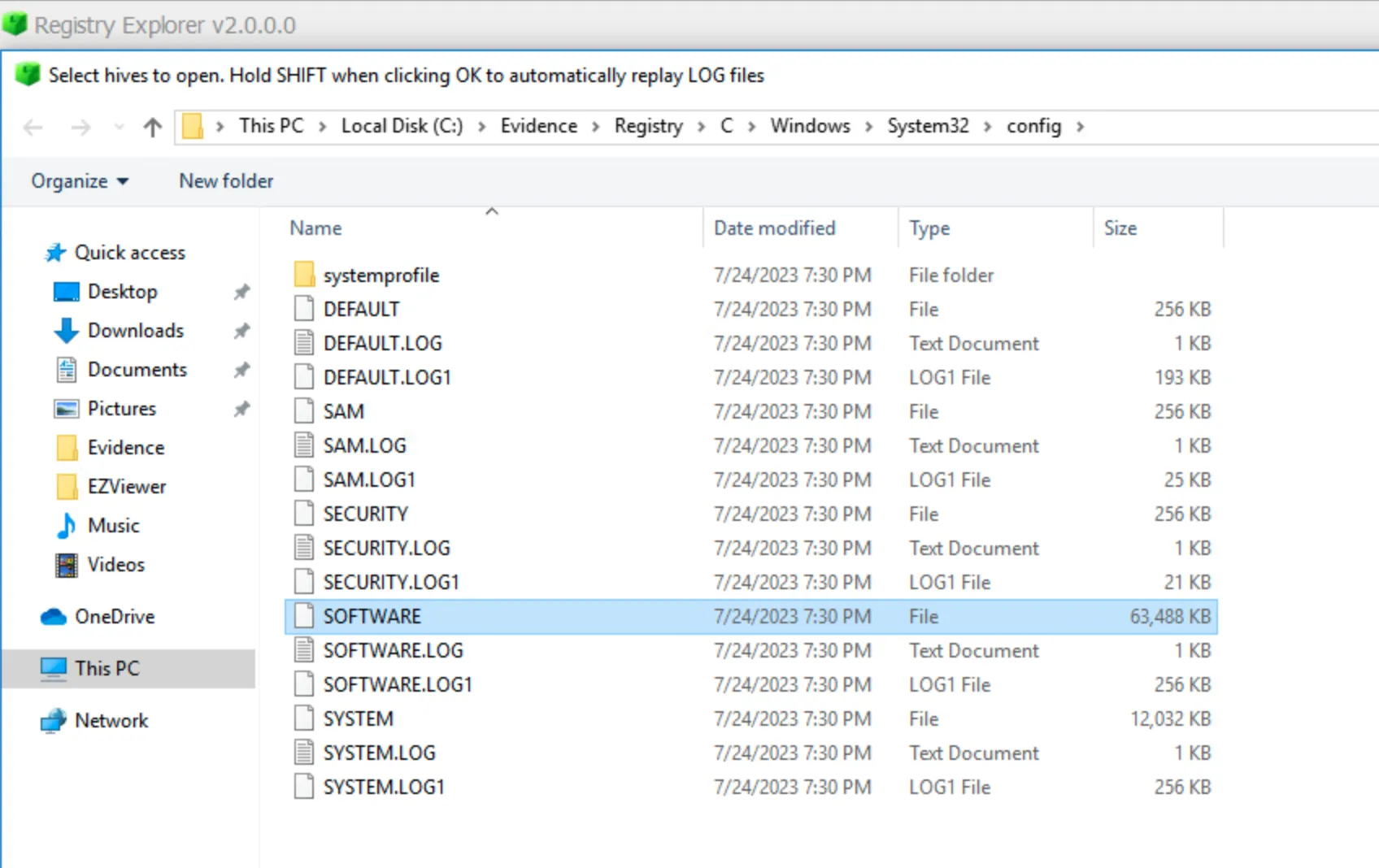
-
7
Inspect Windows Run Keys
Navigate to the key path:
CMI-CreateHive... \ Microsoft \ Windows \ CurrentVersion \ Run. Here we can audit the active startup entries configured to run automatically on Windows boot.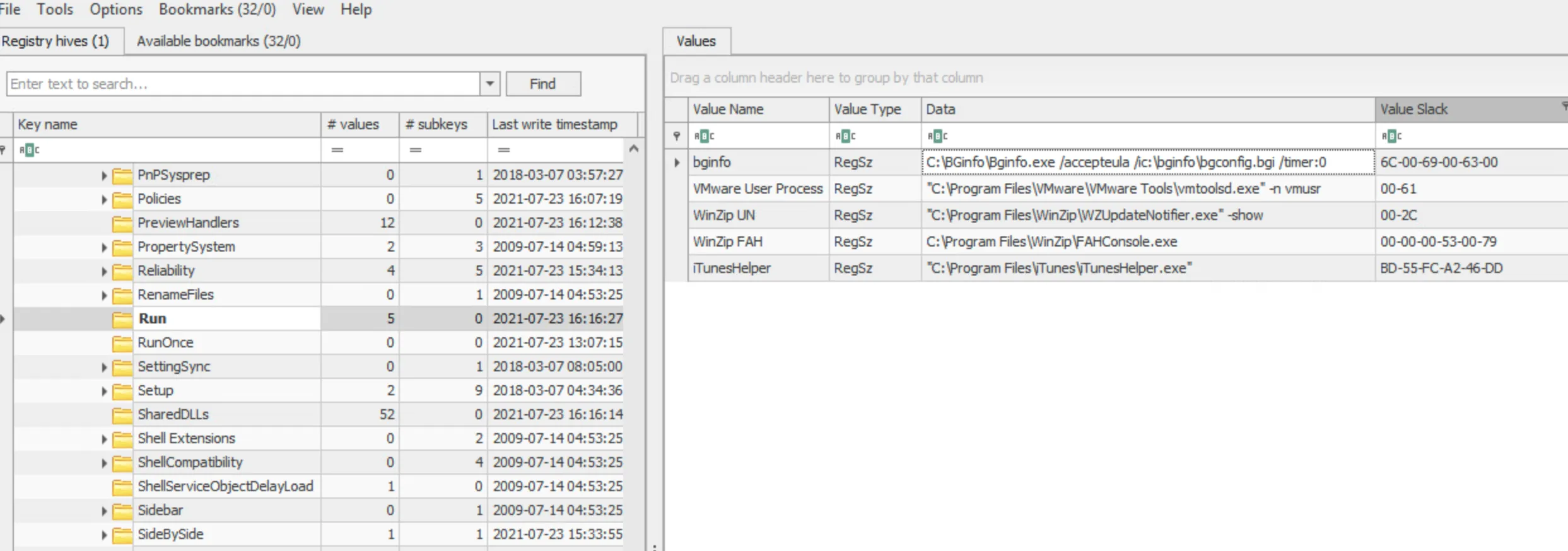
-
8
Parse Hives with RECmd Batch
Execute RECmd (Registry Explorer Command Line) to parse the registry hive using the
SoftwareASEPs.rebbatch rules, and output the findings as a CSV file to theC:\tmpdirectory.C:\Tools\EricZimmerman\RECmd\RECmd.exe --bn BatchExamples\SoftwareASEPs.reb -f "C:\Evidence\Kape Collection\C\Windows\System32\config\SOFTWARE" --csv C:\tmpOpen Timeline Explorer, navigate to the
C:\tmpfolder, and load the newly generated batch CSV file (named starting withBatch...).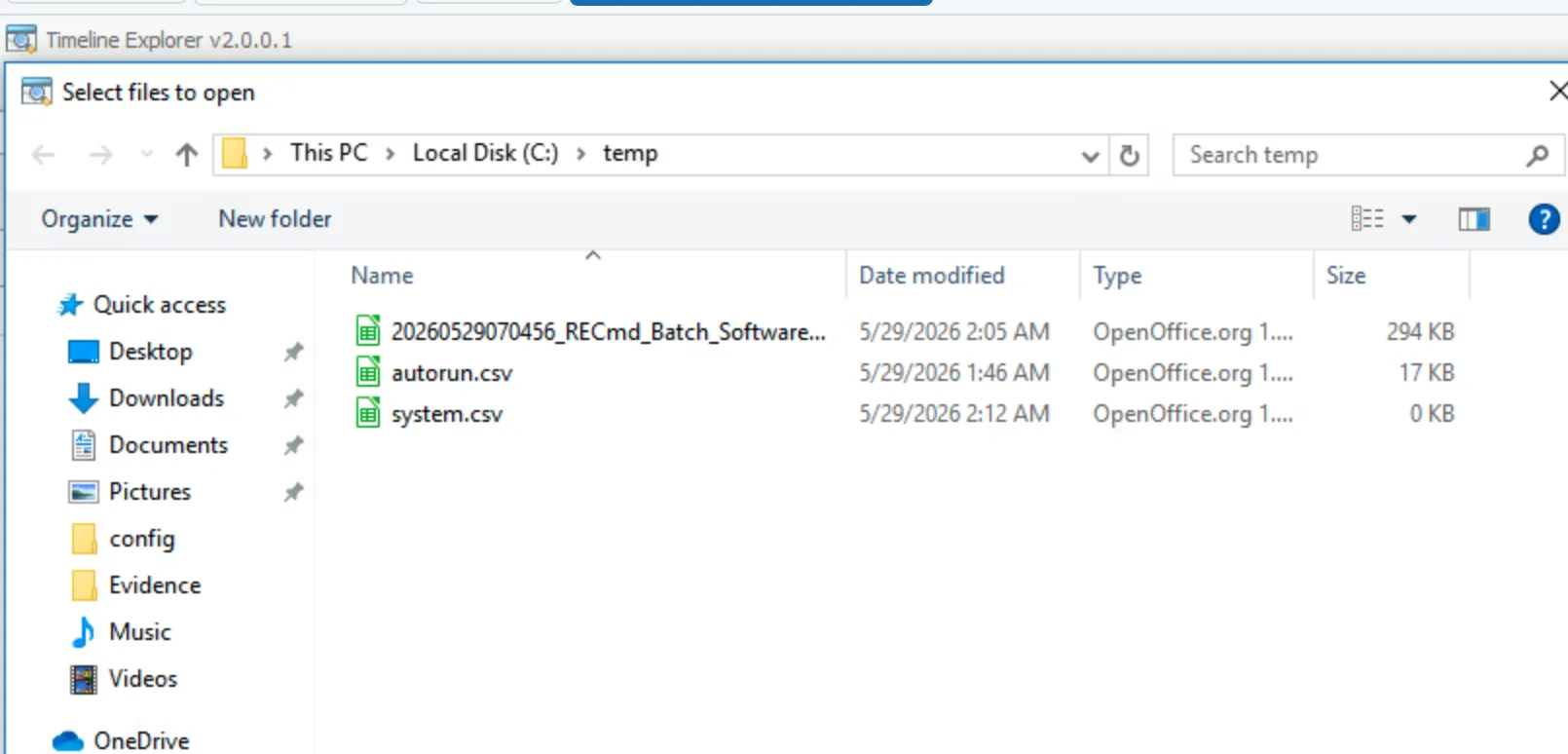
-
9
Parse Event Logs with EvtxECmd
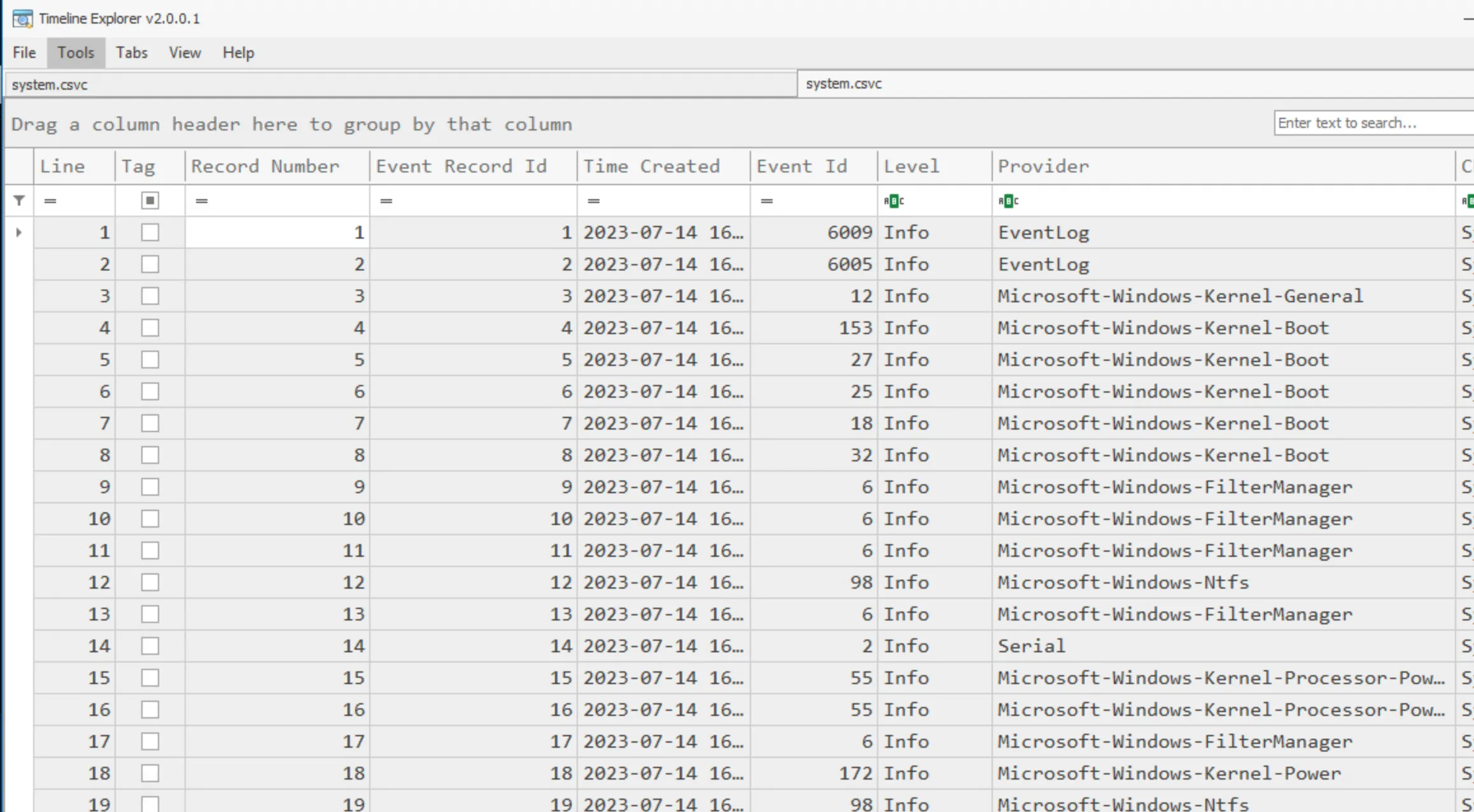
Run EvtxECmd (Event Log Explorer Command Line) to parse the Windows
System.evtxlog file and export the parsed events into a CSV file namedsystem.csvinside theC:\tmpdirectory.C:\Tools\EricZimmerman\RECmd\EvtxECmd.exe -f C:\Windows\System32\winevt\Logs\System.evtx --csv C:\tmp --csvf system.csvOpen Timeline Explorer and load the generated
system.csvfile to inspect the Windows Event Log records in a tabular interface.