
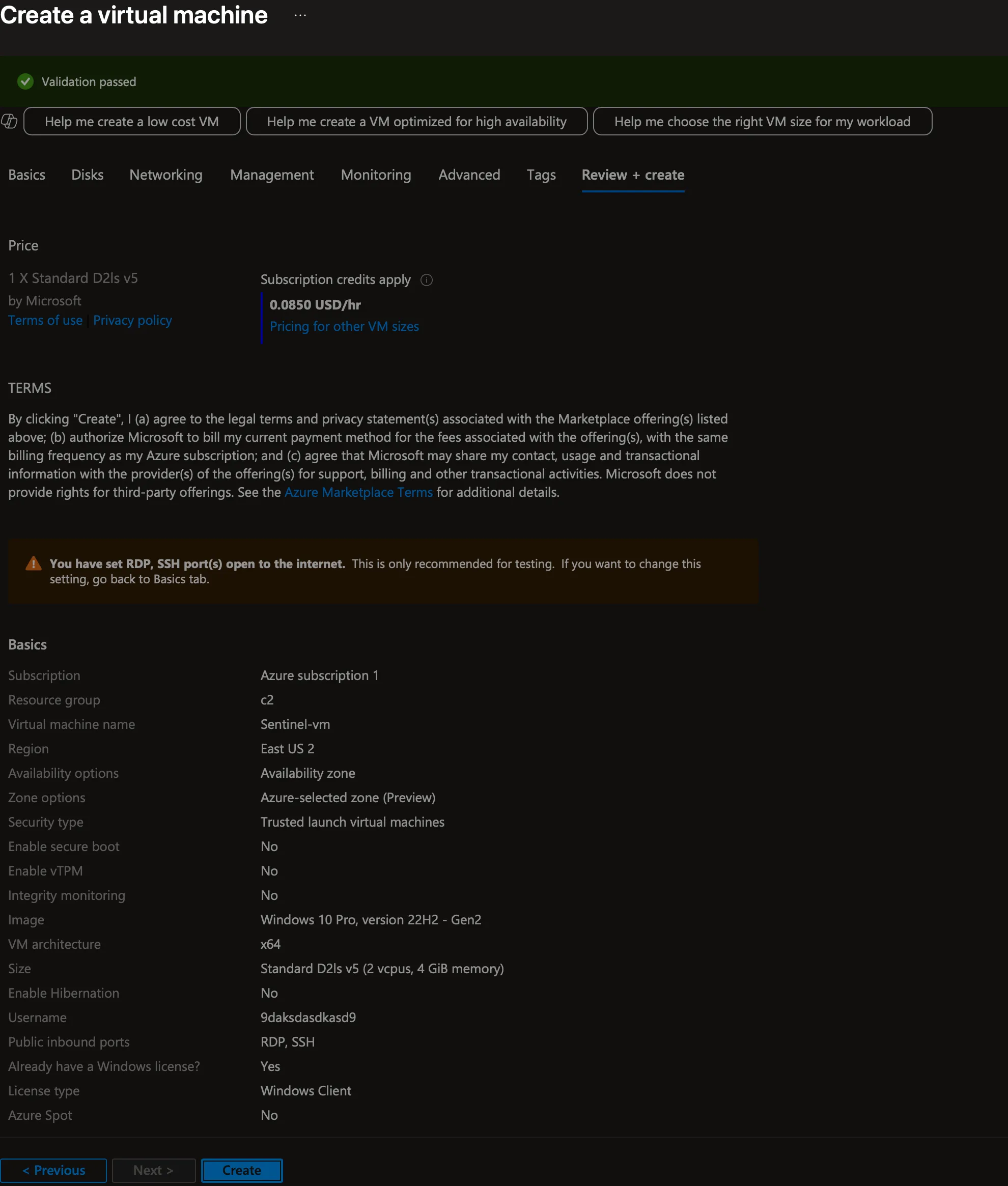
1. Create a Machine with Windows 10
Start by creating a virtual machine running Windows 10. Ensure the machine is properly configured and ready for remote access.
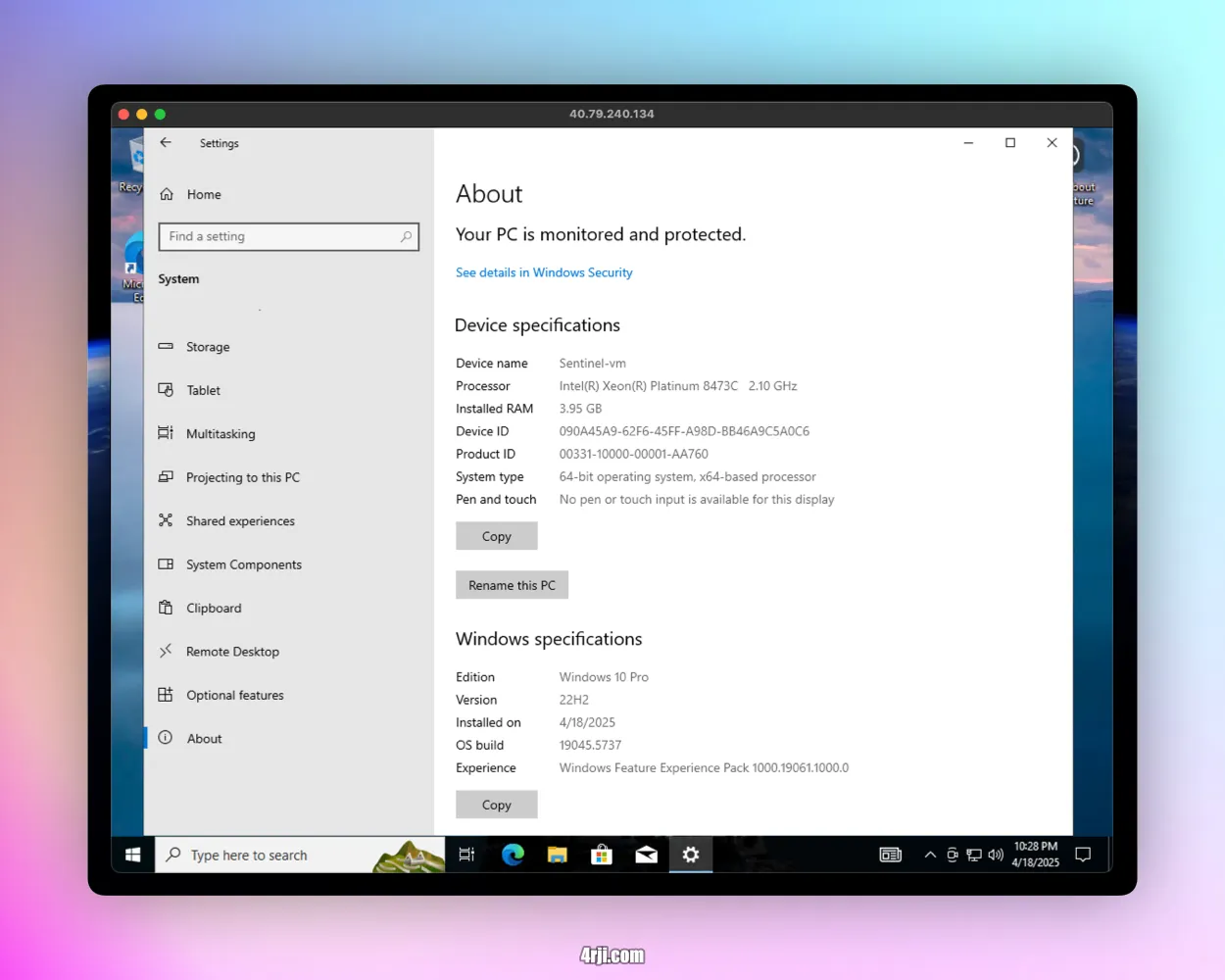
2. Access the Machine via Windows RDP
Use Remote Desktop Protocol (RDP) to connect to the Windows 10 machine. Ensure you have the correct credentials and network access.
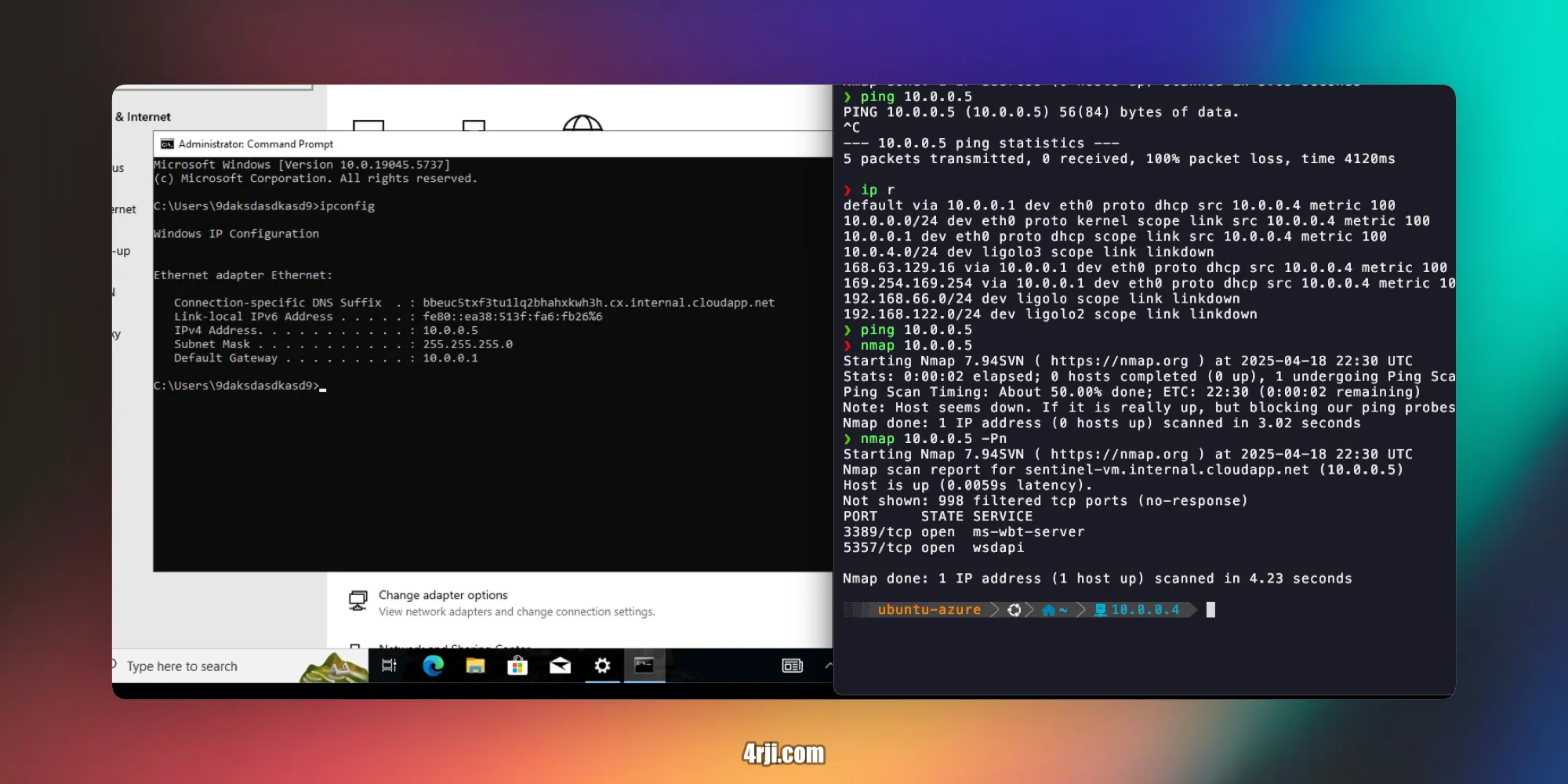
3. Verify Network Connection
Check that the machine is on the same network as your C2 server. This ensures proper communication between the systems.
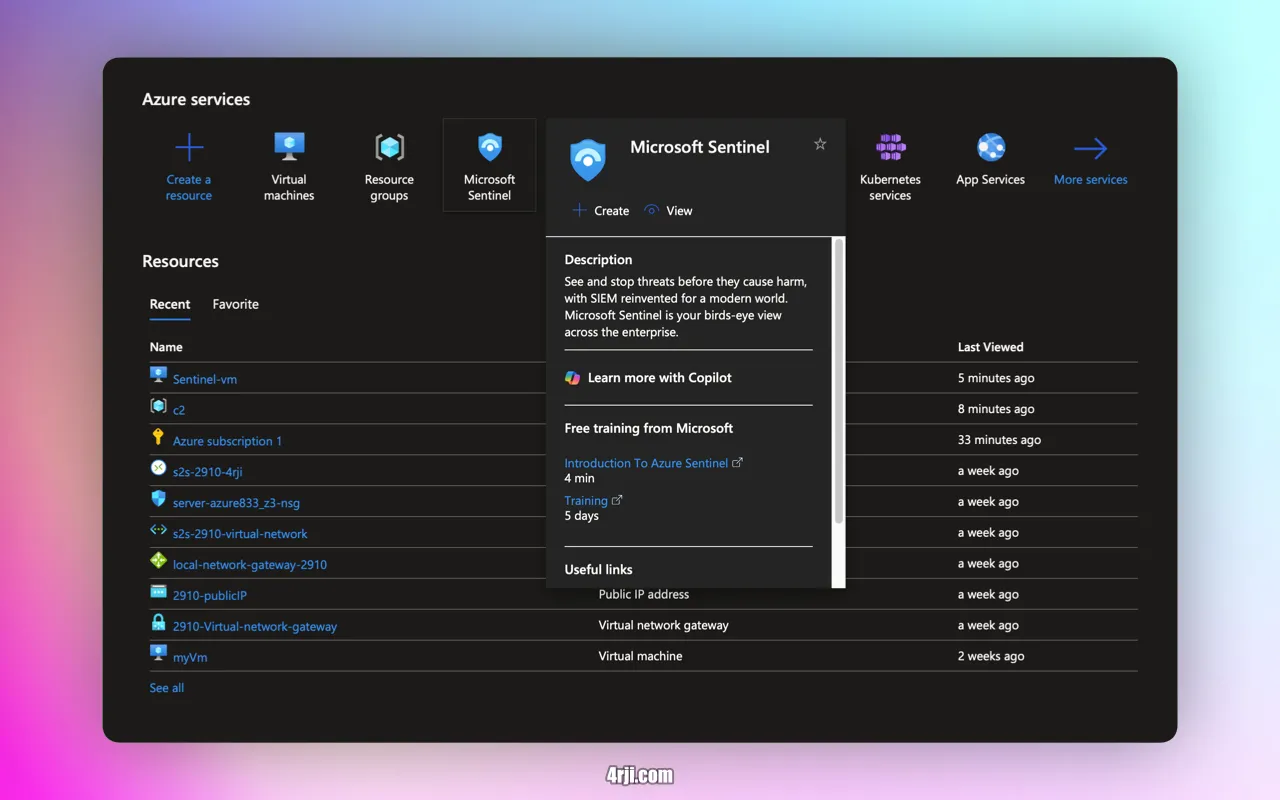
4. Install Sentinel
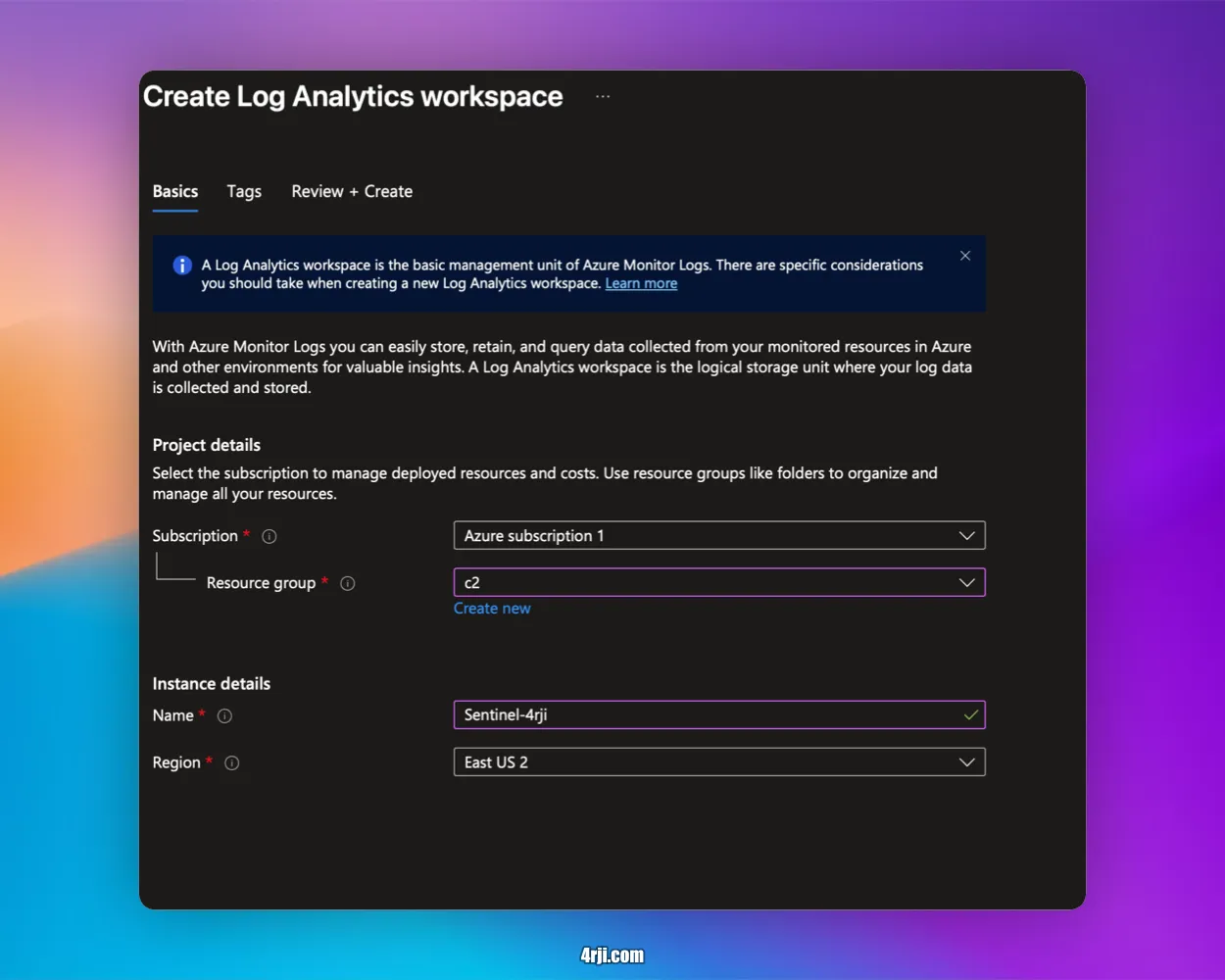
Download and install Sentinel on the machine. Once installed, click on "Create a Workspace" to begin the setup process.
5. Verify agents
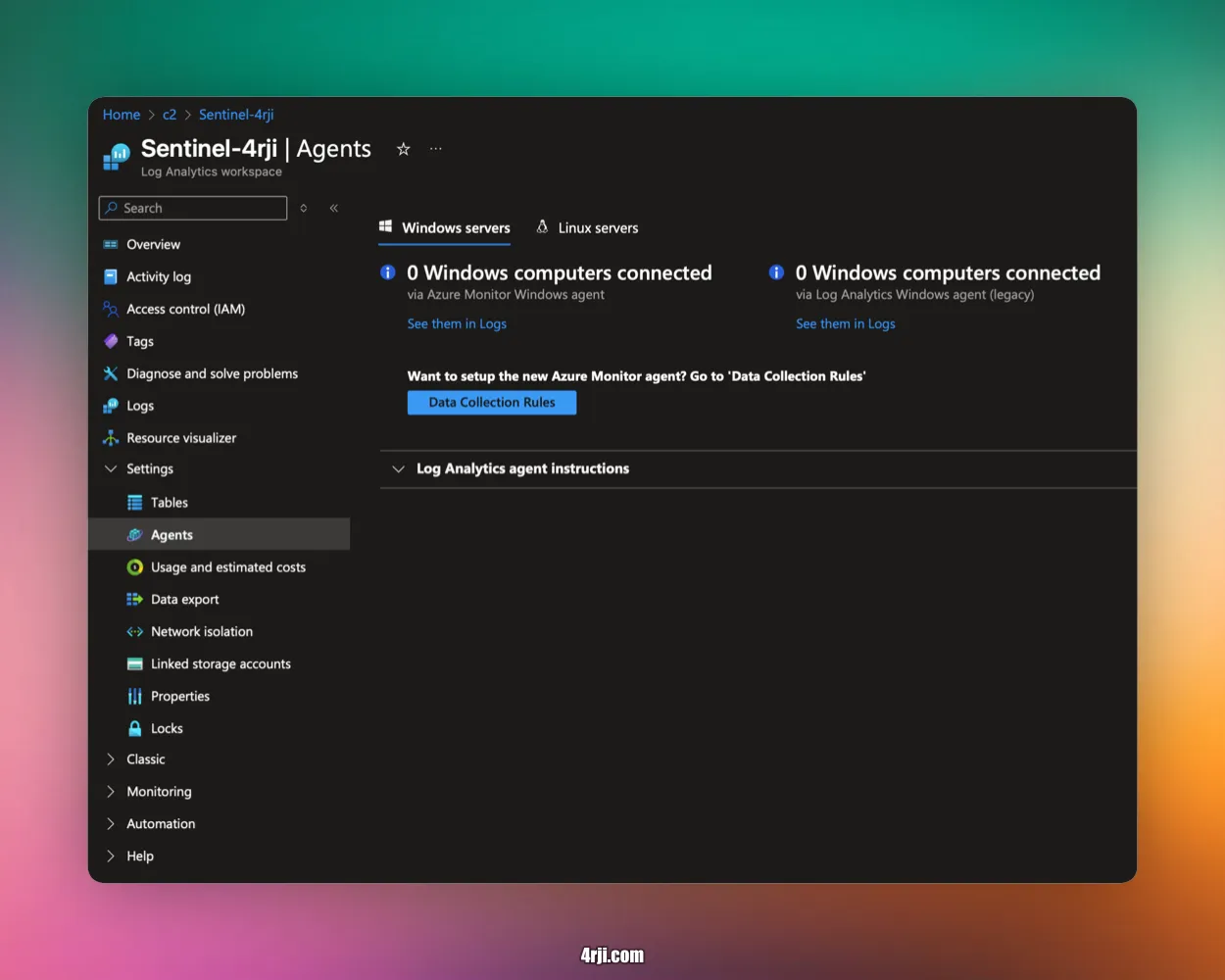
With everything running, proceed to configure Sentinel. Navigate to the "Agents" section to verify that your agents are installed and operational.
6. Add Sentinel to Workspace
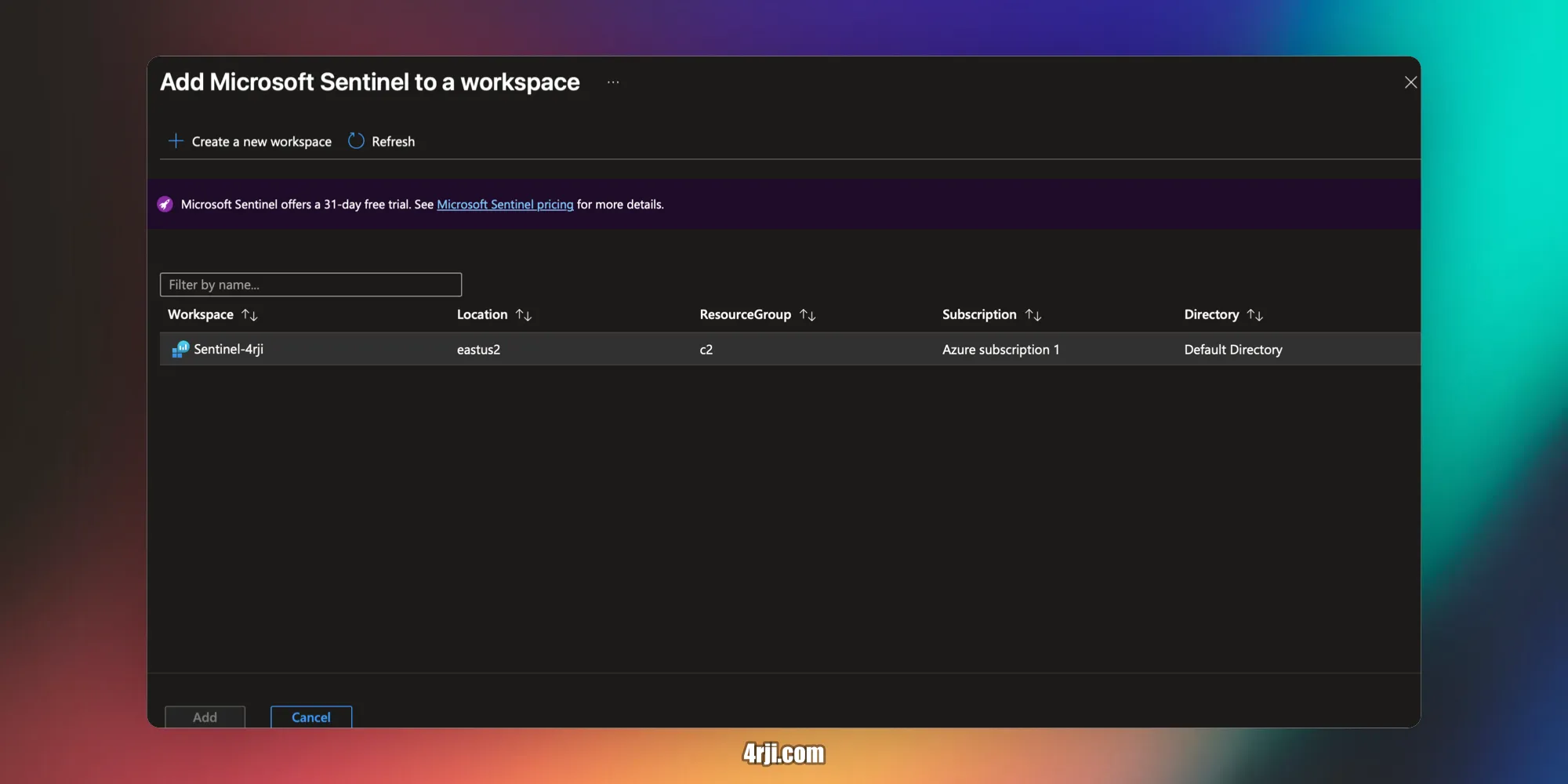
Don't forget to add Sentinel to the workspace as shown in the image below.
7. Configure Data Connectors
Within Data Connectors, go to the Content Hub option.
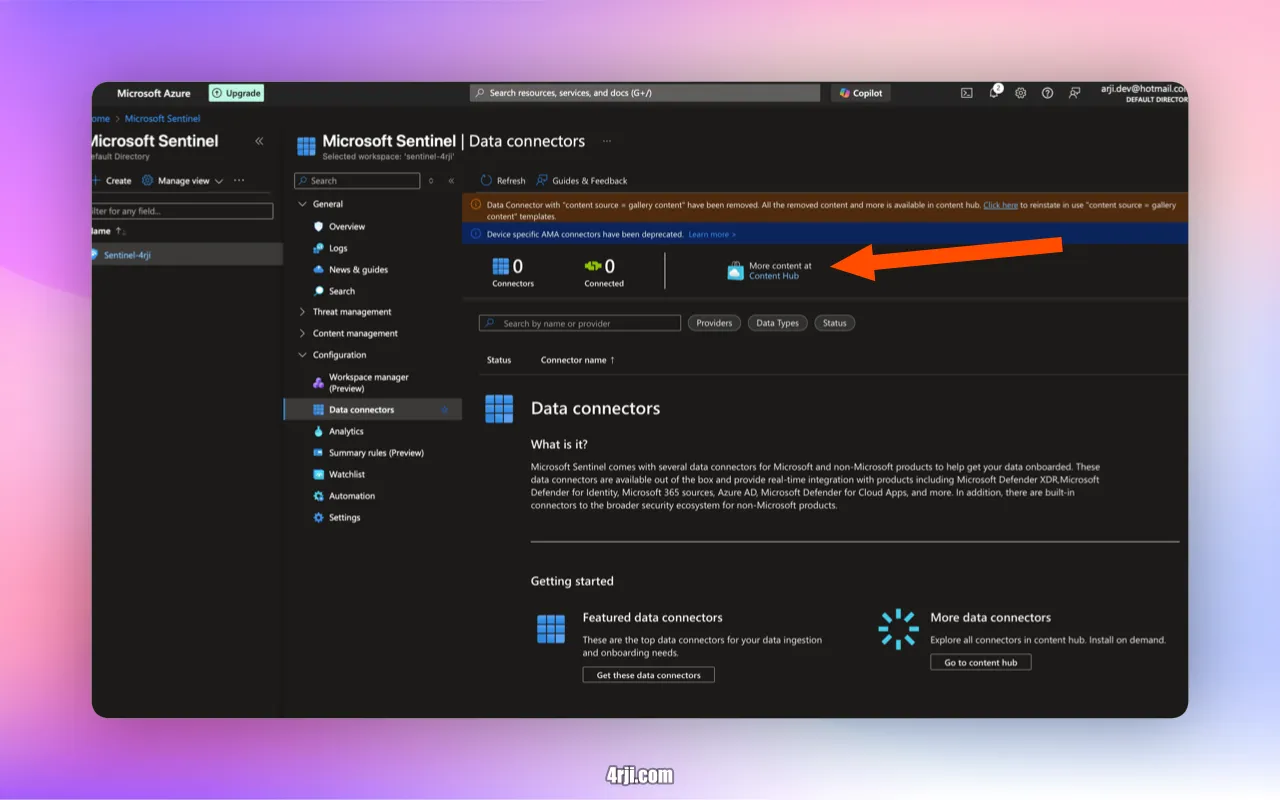
Install Windows Security Events.
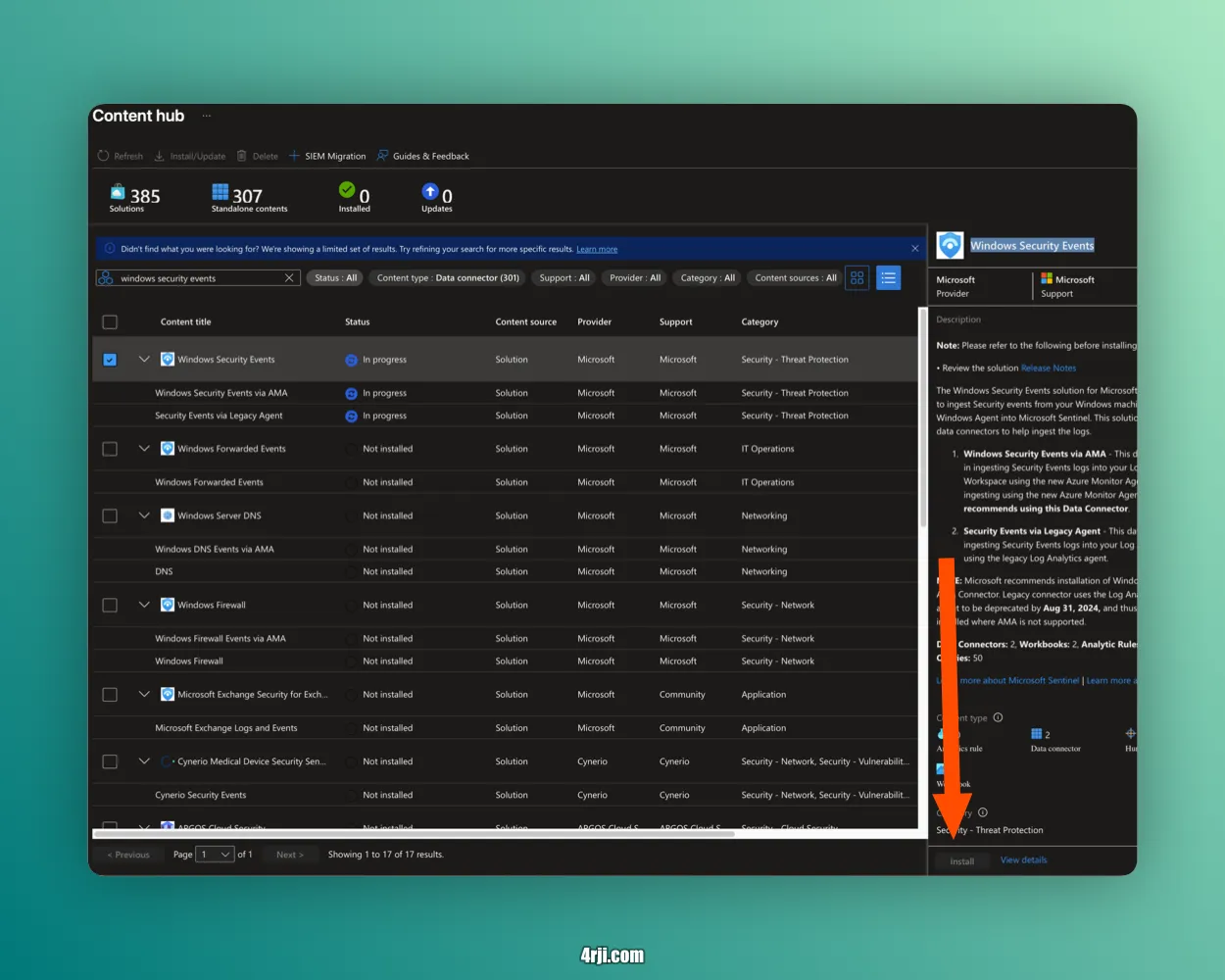
8. Open Connector Page
Return to Connectors, select Windows Security Events, and click "Open Connector Page".
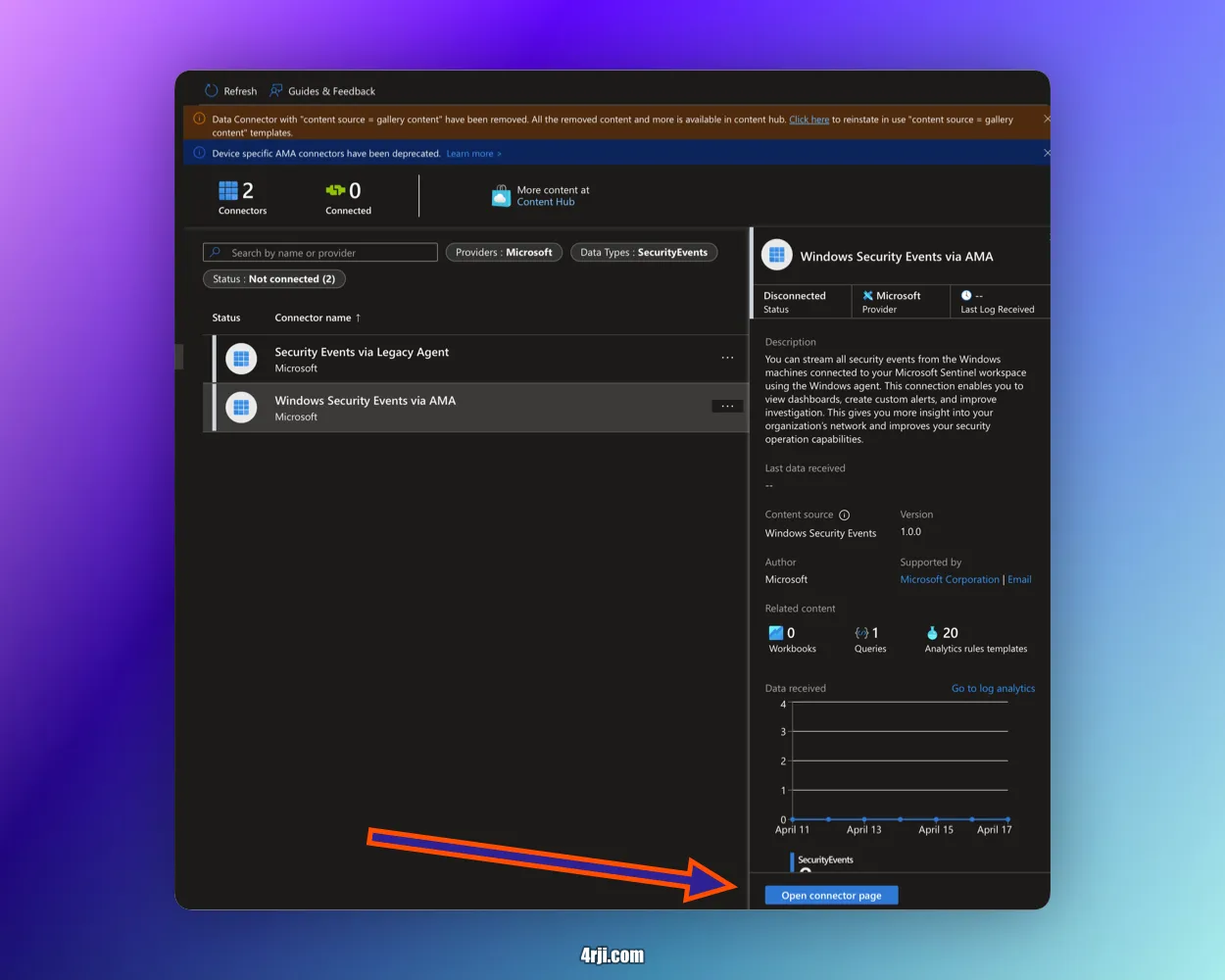
Create a new Data Collection Rule, name it, select the created VM (Sentinel-vm), select all, and then create.
9. Query Logs
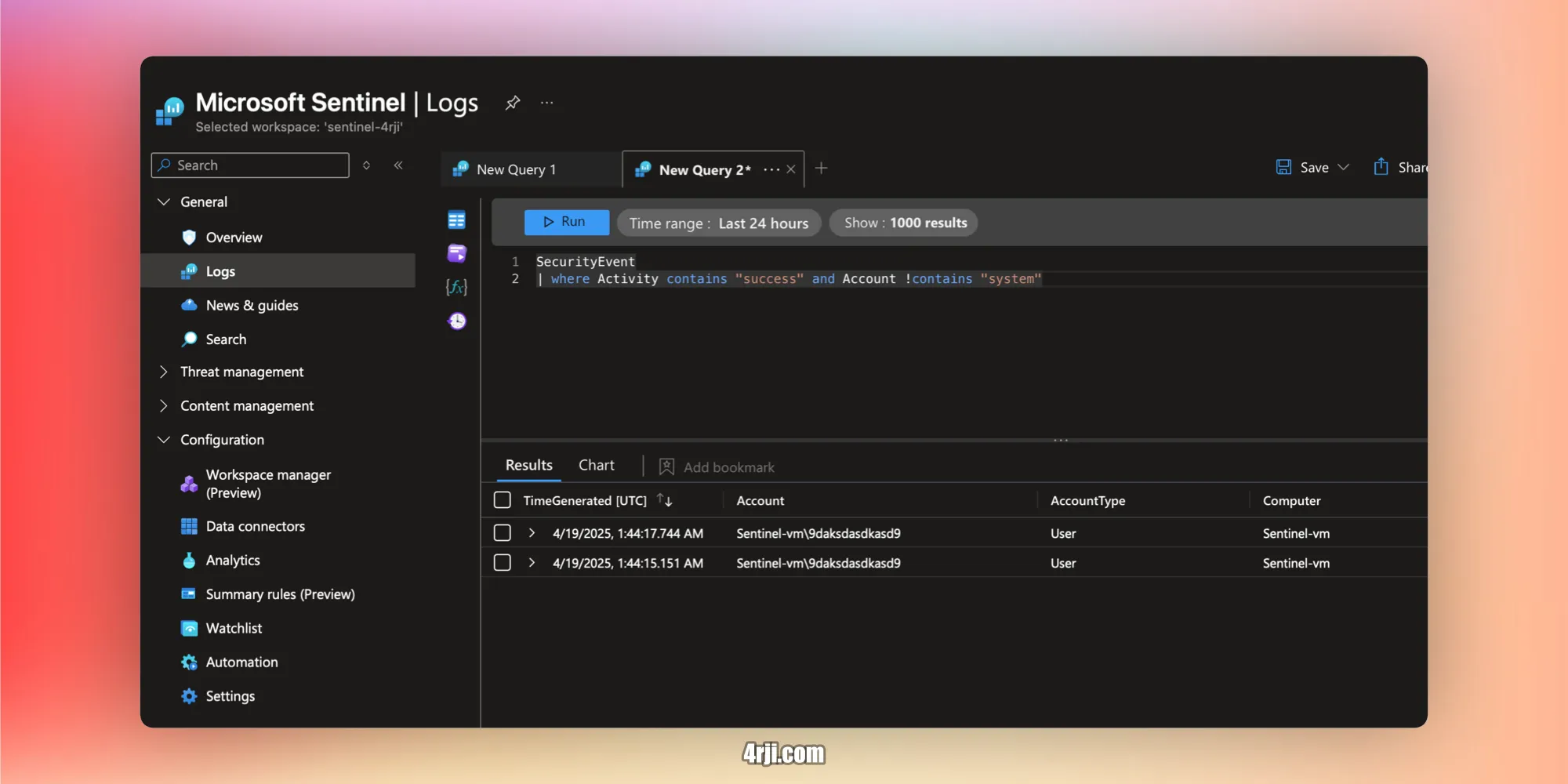
Go back to Microsoft Sentinel and navigate to Logs. Create a new query to get logs of successful RDP connections. Initially, no results will show because the rule is new.

After connecting to the machine and running the query again, you will see the successful connection. Use the following rule to filter RDP connections:
SecurityEvent
| where Activity contains "success" and Account !contains "system"
10. Create Sentinel Alert Rule
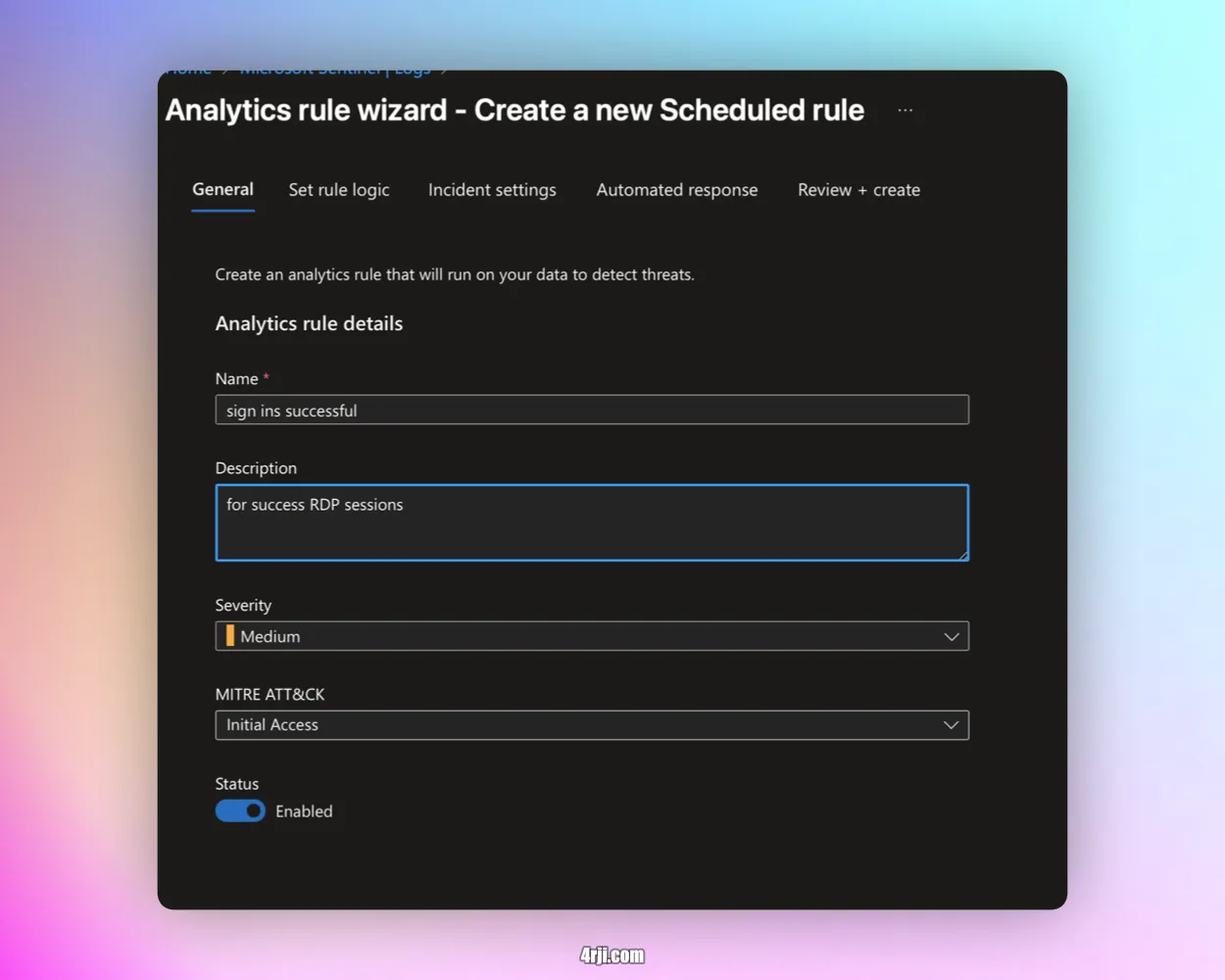
Create a new Microsoft Sentinel alert rule.
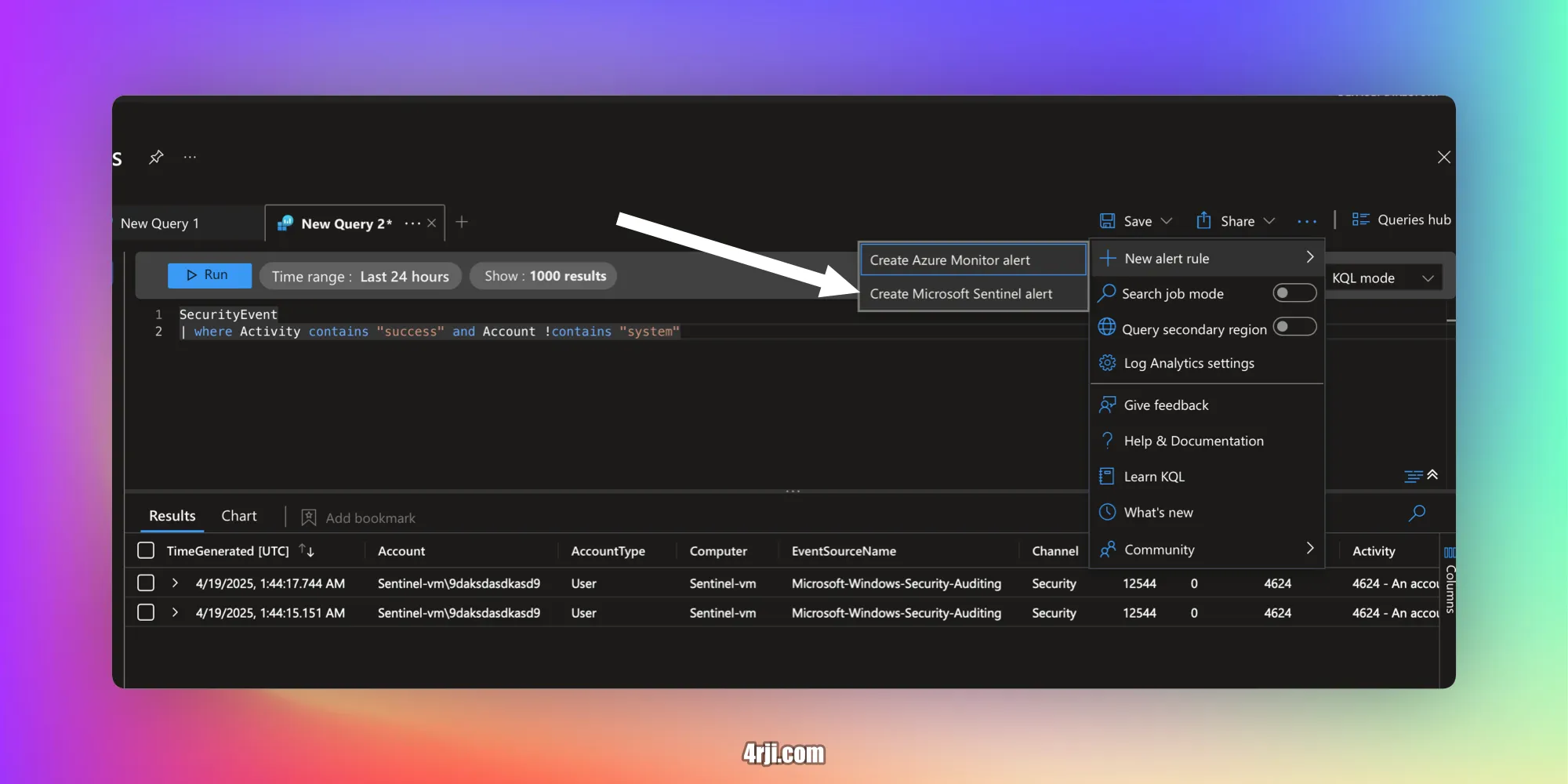
Configure the rule and create it.
11. View Analytics and Incidents
Go back to Sentinel and view the rule in Analytics. Then, log out and log back into the Windows machine to create an incident. You can view it in Threat Management under Incidents.


12. Linux Agent Installation Attempt
I attempted to install the agent on Linux, but encountered an error due to the Ubuntu version being used. Below is the terminal command:
wget https://raw.githubusercontent.com/Microsoft/OMS-Agent-for-Linux/master/installer/scripts/onboard_agent.sh && sh onboard_agent.sh -w 5e4d6df4-f74c-4617-81f5-29ad45ade465 -s yTeMiNspj0ZoHMXTQE4nr8cSPDY6cmVmF2/apf4Rair9WiW2Jh6XZq7EgqRjCjpwgPzV6WC8+c5FjxASDogCfw== -d opinsights.azure.com
