
-
Current Version (Jul 25) – Mac, Windows, and Linux builds available
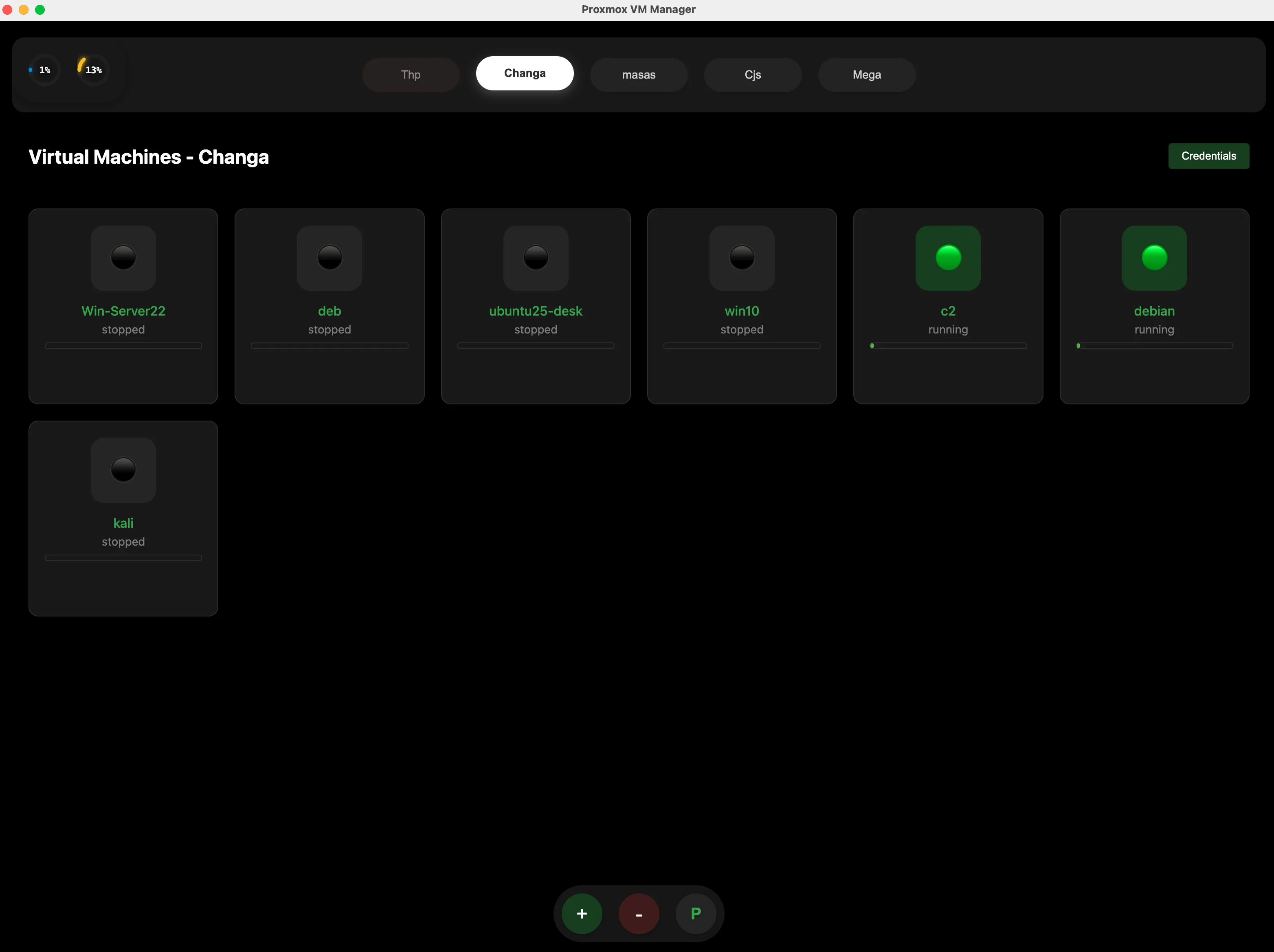
The current version (Jul 25) includes:
- CPU and RAM monitor in the top-left corner.
- Server view at the top center.
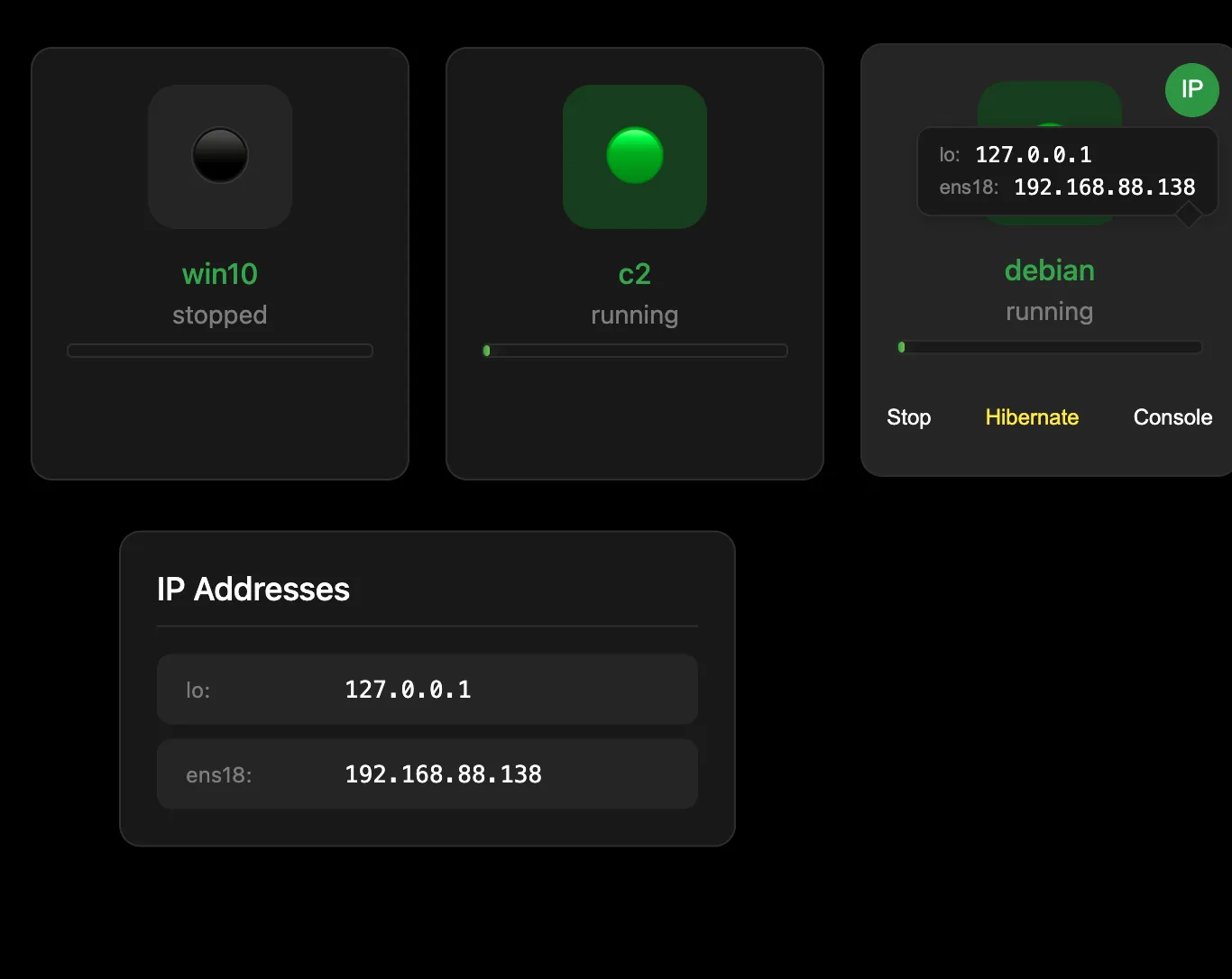
- When selecting a virtual machine, you can see the IP, interfaces, start it, STOP, Hibernate, and access the console from the interface.
- It also has a CPU usage indicator (bar line inside the VM) to show if it's in use.
- We can access the server in the app using the P button.
- add more servers with the + button.
- system information when clicking on the RAM and CPU button.
-
1
Why This Project?
I got tired of opening multiple tabs to manage my Proxmox servers. Keeping everything on a single node caused conflicts, and searching through directories for the right node was frustrating. Last week, while learning how to build apps, I decided to solve this problem. -
2
What It Does
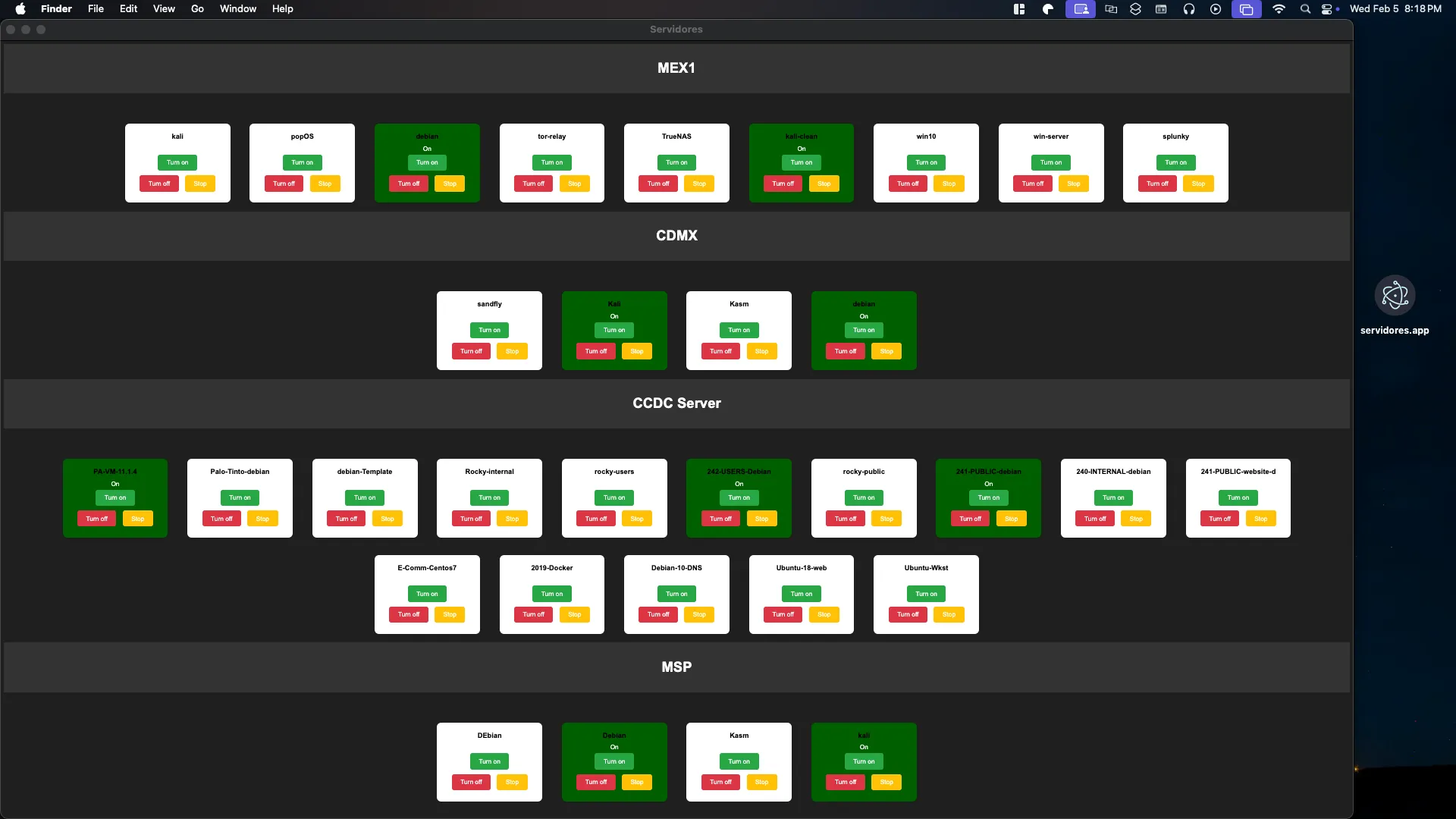
This application allows me to:- See which virtual machines (VMs) are running.
- Turn on VMs
- Shut down VMs or force-stop them if shutdown fails.
- Quickly identify active machines with a green highlight.
-
3
Key Features
- Built for Mac M-series processors (ARM architecture).
- Monitors Proxmox servers efficiently.
- Listens on port 600.
-
4
Upcoming Updates
- Adding a Reset button to revert to the previous snapshot.
- Displaying the IP address of each machine.
- Server Proxmox status
-
5
Installing Guest Agent
To view VM IPs directly in Proxmox, you need to install the QEMU Guest Agent:
For Linux VMs:
- On Proxmox host:
apt update apt install qemu-guest-agent - Inside each Linux VM:
apt install qemu-guest-agent systemctl enable qemu-guest-agent systemctl start qemu-guest-agent - In Proxmox GUI:
- Enable "Use QEMU Guest Agent" in VM configuration
For Windows VMs:
- Inside Windows VM:
- Download virtio-win drivers ISO from Fedora People
- Mount the virtio-win ISO in the VM
- Run the guest-agent installer from the ISO
- Configure Windows service:
sc start qemu-ga sc config qemu-ga start= auto - In Proxmox GUI:
- Enable "Use QEMU Guest Agent" in VM configuration (Options)
- On Proxmox host:
-
6
Enabling Guest Agent in Proxmox Interface
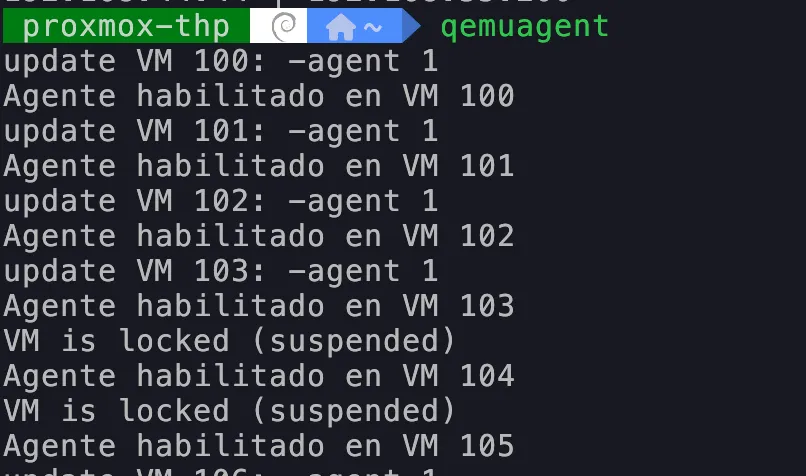
After installing the guest agent in your VMs, you need to enable it in the Proxmox interface for each machine. You can do this manually or use the following script:
#!/bin/bash

# Get list of all VMs
vms=$(qm list | awk 'NR>1 {print $1}')

# Enable QEMU Guest Agent for each VM
for vm in $vms; do
    echo "Enabling QEMU Guest Agent for VM $vm..."
    qm set $vm --agent 1
done

echo "QEMU Guest Agent enabled for all VMs!"
To use this script:
- Save the script to a file (e.g.,
enable_guest_agent.sh) - Make it executable:
chmod +x enable_guest_agent.sh - Run the script:
./enable_guest_agent.sh
This script will automatically enable the QEMU Guest Agent for all your VMs in Proxmox.
- Save the script to a file (e.g.,
Download from my GitHub