Description:
Ollama allows you to run large language models (LLMs) locally on your Linux machine. This guide will walk you through the process of installing Ollama, setting up Open WebUI for a user-friendly interface, and connecting them to run models privately and efficiently.
How It Works
Setting up Ollama on Linux combined with Open WebUI provides a powerful, local AI platform. By running LLMs on your own hardware, you ensure data privacy and avoid subscription fees while maintaining a polished interface similar to ChatGPT.
The installation process involves a single-command install for Ollama and a Docker deployment for Open WebUI, allowing for seamless integration and management of various models from sources like Hugging Face.
-
1
Install Ollama
First, install Ollama on your Linux system using the official installation script. This command handles all dependencies and sets up the Ollama service:
curl -fsSL https://ollama.com/install.sh | sh -
2
Install Open WebUI
Next, deploy Open WebUI using Docker. This provides a web-based interface to interact with your local models. We'll run it on the host network to easily communicate with the Ollama service:
docker run -d \ --network=host \ -v open-webui:/app/backend/data \ -e OLLAMA_BASE_URL=http://127.0.0.1:11434 \ --name open-webui \ --restart always \ ghcr.io/open-webui/open-webui:main -
3
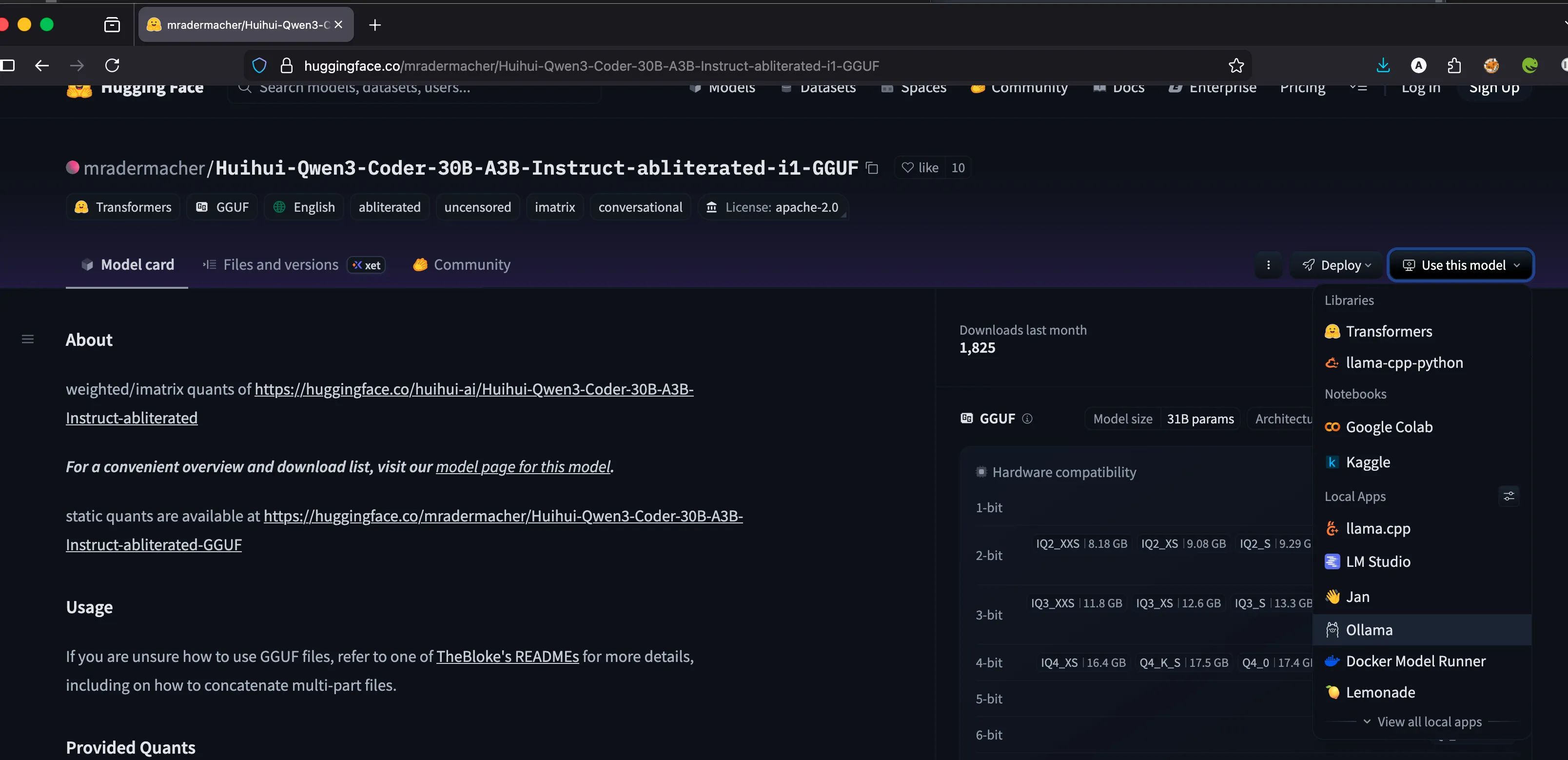
Explore Models on Hugging Face
Visit Hugging Face to find the models you want to use. You can search for specific architectures or optimized versions suited for your hardware.
-
4
Download and Run a Model
Use the Ollama command line to download and run your chosen model. For example, to run the Qwen3 30B Coder model:
ollama run hf.co/mradermacher/Huihui-Qwen3-Coder-30B-A3B-Instruct-abliterated-i1-GGUF:IQ1_M -
5
Access the Web Interface
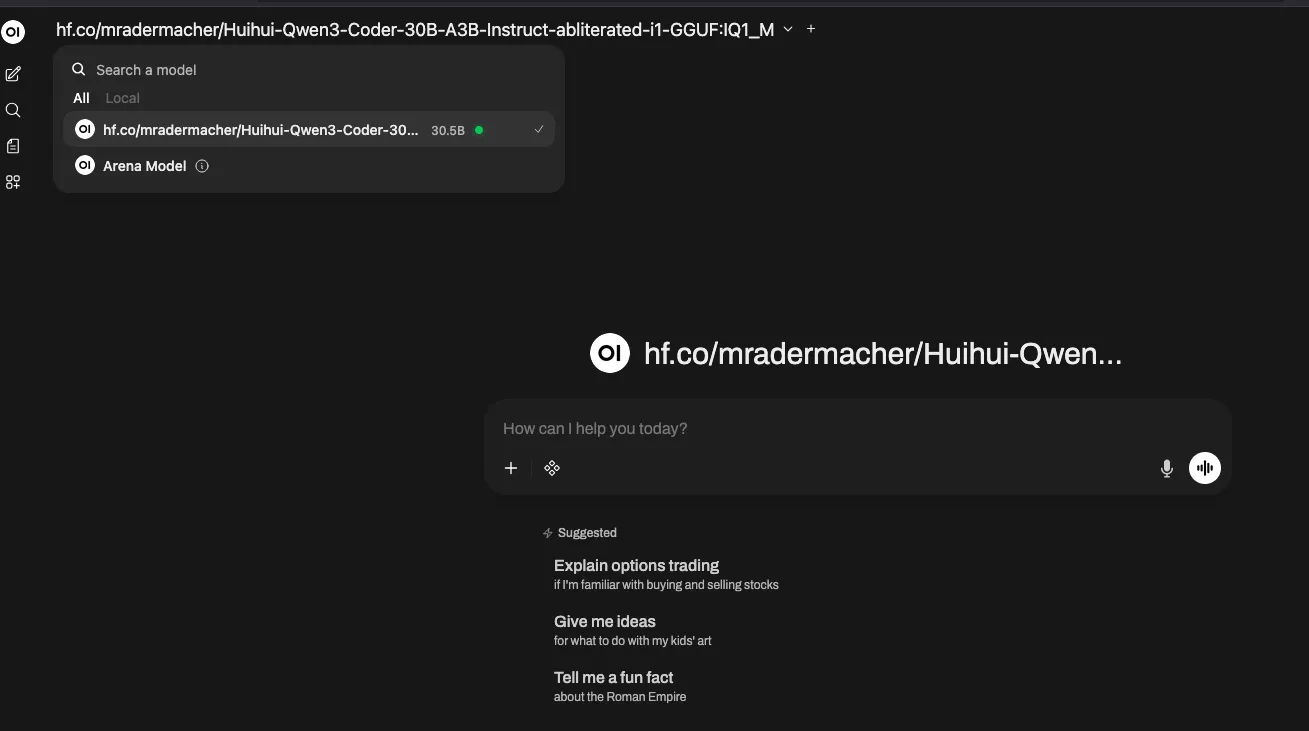
Once the model is loaded, you can access Open WebUI through your browser (usually at
http://localhost:8080). You will be able to see the loaded model and start chatting immediately: