AI-Based Backdoor Detection System

AI-Based Backdoor Detection System

Project Proposal

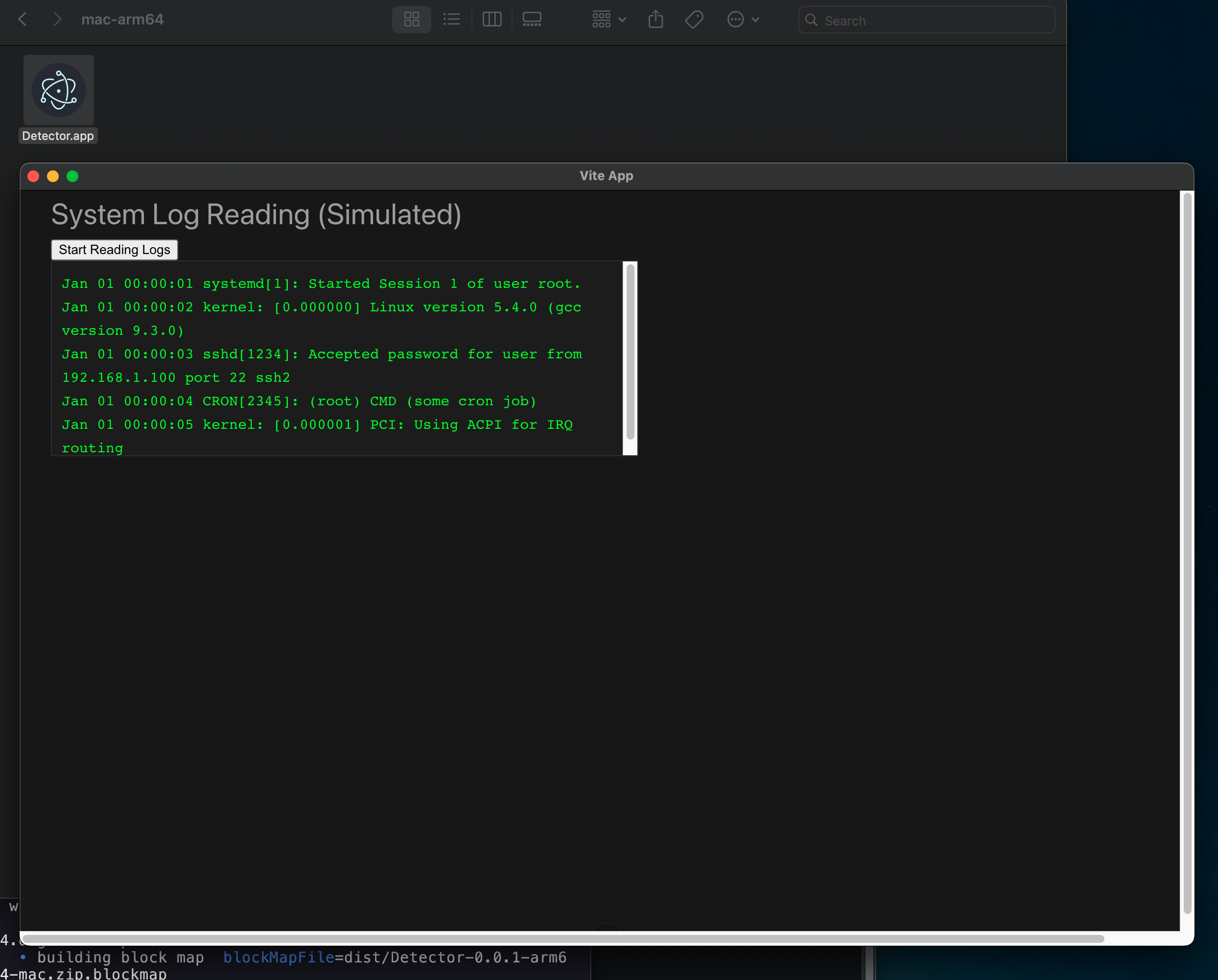
  • The idea for this project emerged during the CCDC competition, where I realized that installing a simple connection detector or reviewing system logs is complex, challenging, and not user-friendly.

    My project aims to develop an AI-driven backdoor detection system designed to identify hidden threats in Linux-based environments. By leveraging machine learning and log analysis, my solution will enhance security by detecting anomalies and unauthorized access attempts.
  • First test

    Vue.js + Electron App Setup

    Step-by-step guide to create a Vue.js application integrated with Electron

    • 1

      Initialize Vue.js Project

      Run the following command to initialize a Vue project:
      npm init vue@latest
      For non-Vue projects
      npm init -y
      When prompted, configure the project:
      • ✔ Project name: detector
      • ✔ Add TypeScript? → No
      • ✔ Add JSX Support? → No
      • ✔ Add Vue Router? → Yes
      • ✔ Add Pinia for state management? → Yes
      • ✔ Add Vitest for Unit Testing? → No
      • ✔ Add an End-to-End Testing Solution? → No
      • ✔ Add ESLint for code quality? → No
    • 2

      Navigate to Project Directory

      Move into the newly created project directory:
      cd detector
    • 3

      Install Dependencies

      Run the following command to install the required dependencies:
      npm install
    • 4

      Add Electron

      Install Electron as a development dependency:
      npm install electron --save-dev
    • 5

      Create Electron Main Process File

      Create a file named electron-main.js in the root of the project with the following content:
      const { app, BrowserWindow } = require('electron');
      
      function createWindow() {
          const win = new BrowserWindow({
              width: 1200,
              height: 800,
              webPreferences: {
                  nodeIntegration: true
              }
          });
      
          win.loadURL('http://localhost:3000');
      }
      
      app.whenReady().then(createWindow);
                  
    • 6

      Start Development Server

      Run the following command to start the Vue development server:
      nohup npm run dev -- --port 3000 &
      For just a npm init -y, start the proyect with
      npm start
      or npx electron main.js ( or electron-main.js) 
    • 7

      Run Electron

      Depending on your system, use one of the following methods:
      • On NixOS: Run Electron using a shell environment:
      • nix-shell -p electron nodejs_18
        electron electron-main.js
      • On other systems:
      • npx electron electron-main.js
    • 8

      Install Electron Builder

      Install Electron Builder globally:
      npm install -g electron-builder

      Note: If you encounter an error similar to the one above (e.g., permission denied), try installing it using sudo:

      sudo npm install -g electron-builder

    • 9

      Build the Application

      Run the build process:
      npm run build
    • 10

      Fixing Issues on NixOS

      If there are issues running the build, try the following:
      npm install --save-dev electron-builder
      rm -rf node_modules package-lock.json
      npm install
      npm run dist
                  
    • 11

      Open the application

      If you encounter a FUSE error when opening the AppImage (e.g., "fuse: failed to exec fusermount: No such file or directory"), execute the app as follows:
      ./Application.AppImage --appimage-extract