How the Cyber Range Was Created
CCDC
“As the CCDC competition is in three months, my first focus will be on recreating the competition network, starting with the firewall.”

-
1
The topology
-
2
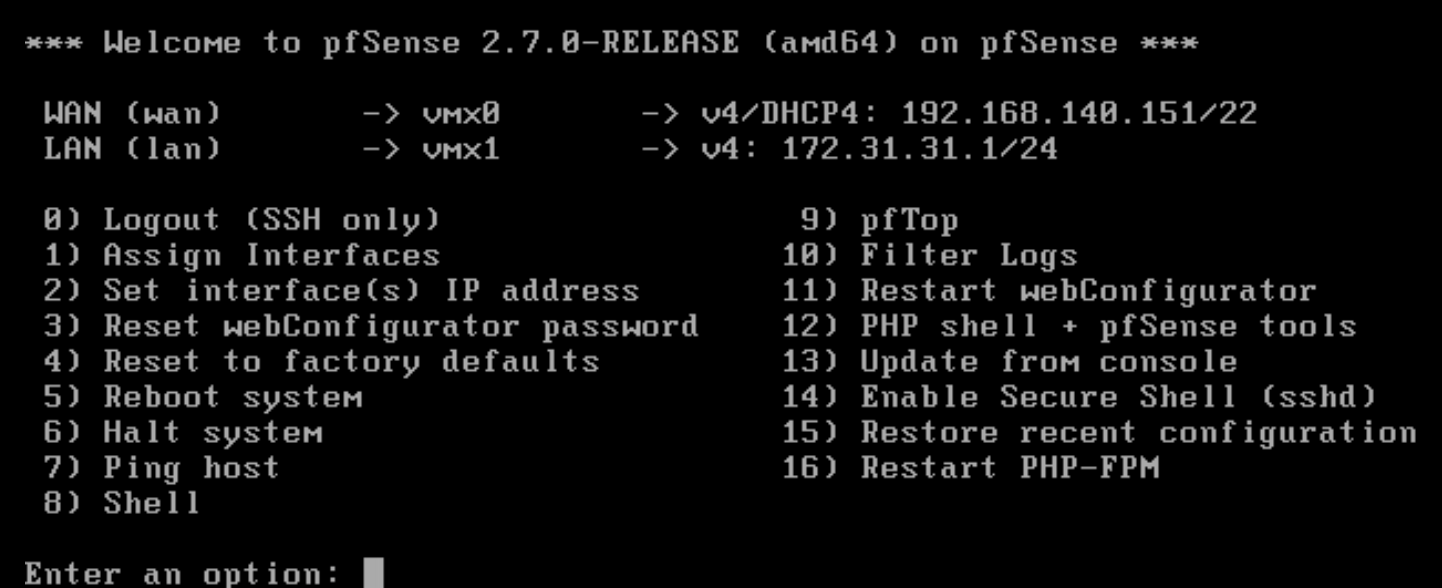
“I will be using Pfsense to simulate the internet service provider (ISP). The first step is to set up a server running Pfsense.”
“The steps I followed to install Pfsense can be found at this link.” PFsense: Advanced Network Security Made Simple
-
3
“The next step is to install Ubuntu Workstation, as it will be used to configure the firewall.”
-
4
“Now the next step is to deploy an OVF file for the Palo Alto firewall.”
-
5
Configure the firewall
To Configure the Firewall, Here Are the Instructions LINK -
6
I encountered a problem where, to manage the virtual machines, I had to use Virsh. From there, I could control them, such as turning them on or off, accessing the console, and performing various other tasks. It worked well, but I had to use the Kali Linux to manage and run all the virtual machines, which required a lot of resources. Additionally, I had to support all the Docker machines and also had to virtualize the VMs for CCDC.
-
7
Using QEMU to emulate the virtual machines allowed us to access the consoles and perform necessary tasks effectively. However, the main problem was that the emulation process was very slow, making it inefficient for our needs.
When the "Start" button is pressed on the website, it automatically sends a command to power on the virtual machine. In this case, the virtual machine runs CentOS 7, a widely used operating system. This streamlined process allows users to easily access and begin using the virtual environment without any delays.
After about a minute of starting the machine, its IP address appears on the website, allowing users to connect to it easily.
-
8
Having access to the school's server, I decided that it would be better to have each virtual machine separate to avoid having to virtualize the machines within the machine, which is very, very slow.
While searching for resources, I found that VMware has a tool called "govc" to manage the machines from the command line interface, and it worked on the first try. From there, I can control the resources, which in this case would be turning the machine on and off and viewing the IP address. My professor Brian gave me a read-only user account to prevent the machines from being modified accidentally.
I Have Created the 'vcenterinst' Script to Download and Install the Tool
wget https://github.com/vmware/govmomi/releases/latest/download/govc_Linux_x86_64.tar.gz tar -xvf govc_Linux_x86_64.tar.gz export GOVC_URL='https://192.168.140.20/sdk'\nexport GOVC_USERNAME='mpls\xtUSerHere'\nexport GOVC_PASSWORD='MySuperSecretPassword'\nexport GOVC_INSECURE=1 ❯ ./govc vm.info "havi - kali" | grep " IP address" IP address: 10.0.0.3 ❯ ./govc vm.info "Havi-labs" | grep " IP address" ❯ ./govc vm.info "Havi-labs" ❯ ./govc vm.info "Havi-Labs" Name: Havi-Labs Path: /MPLSITEC/vm/ITEC 2995/Havi/Havi-Labs UUID: 4230882e-b2fc-2fd9-f368-9a2e1a16dae0 Guest name: Debian GNU/Linux 12 (64-bit) Memory: 20480MB CPU: 10 vCPU(s) Power state: poweredOn Boot time: 2024-10-28 22:32:10.997558 +0000 UTC IP address: 192.168.140.247 Host: itecesxi-3.itec.campus.minneapolis.edu ❯ ./govc vm.info "Havi-Labs" | grep " IP address" IP address: 192.168.140.247 ❯ govc vm.info "havi - kali" | grep "Powered on" zsh: command not found: govc ❯ ./govc vm.info "havi - kali" | grep "Powered on" ❯ ./govc vm.power -on "havi - kali" Powering on VirtualMachine:vm-12735... ./govc: The attempted operation cannot be performed in the current state (Powered on). -
9
First, it's important to understand how to send commands to Vcenter. To make this easier, I have developed a script that simplifies the process:
vcen Virtual Machines in '/MPLSITEC/vm/ITEC 2995/Havi': _________________________________________________________ 1) CCDC-Debian-test 2) PA-VM-ESX-10.0.6 3) 2995Mint-Havi 4) Havi-Labs 5) CCDC-Centos7-Ecomm 6) CCDC_Ubuntu_Wkst 7) CCDC-Splunk 9.1 8) CCDC-DNS-NTP-Testing 9) CCDC-Ubuntu18-Web 10) CCDC-PA 11) CCDC-2016 Docker%2fRemote 12) CCDC-Kali-Linux 13) CCDC-IPS (pfSense) 14) OpenVPN Access Server ESXi 15) havi - kali 16) CCDC-Fedora 21 webmail%2fApps 17) CCDC-2019 AD%2fDNS%2fDHCP 18) CCDC-Debian10-DNS-NTP _________________________________________________________ Select a virtual machine [1-18] (or press 'q' to exit): 15 _________________________________________________________ What action would you like to perform? 1) Power on the VM 2) Power off the VM 3) View IP and status of the VM 4) Exit Select an option [1-4]: 3 Getting information for VM: havi - kali Name: havi - kali Power state: poweredOn IP address: 192.168.141.90 _________________________________________________________ What action would you like to perform? 1) Power on the VM 2) Power off the VM 3) View IP and status of the VM 4) Exit Select an option [1-4]: 2 Powering off the VM: havi - kali Powering off VirtualMachine:vm-12735... OK The VM 'havi - kali' has been powered off successfully. _________________________________________________________ What action would you like to perform? 1) Power on the VM 2) Power off the VM 3) View IP and status of the VM 4) Exit Select an option [1-4]: 3 Getting information for VM: havi - kali Name: havi - kali Power state: poweredOff IP address: _________________________________________________________ -
10
Using the new commands learned, we'll now try changing the buttons and also how the IP address is displayed. It's working correctly.
It was challenging at first, but the issue turned out to be that the credentials now need to be included within the script for it to function.
CentOS 7 E-comm its working now :)
-
11
Now that I've fixed the commands and added a feature to display whether a machine is on, along with its IP address, it's time to install all operating systems on the machines.
All bottons working and Ips
-
12
Due to licensing restrictions on the school’s server, I am now using my personal server at home, with the installation running on Proxmox.
Proxmox- SERVER
-
13
“I set up a dedicated network for Palo Alto on the firewall.”
-
14
“Create a virtual machine and then remove its hard drive to add the new one.”
-
15
“Run the following command, specifying the virtual machine number (100) and the storage location (local).”
-
16
“Return to the configuration and add the newly created hard drive.”
-
17
“Change the boot order in the system settings.”
-
18
“Then add the network interfaces for the different Palo Alto subnets.”
-
19
“Done. Power on the VM, and the Palo Alto system should be visible.”
-
4
TitleNumber4
Content