Active Directory Multi-Site Deployment
Deploying a Windows Server 2022 AD Forest with Distributed Domain Controllers
This project sets up a primary Active Directory forest on Windows Server 2022 and extends the infrastructure by connecting two additional domain controllers at remote sites. The goal is to enhance reliability and simplify management through efficient multi-site replication.
- Install and configure Windows Server 2022 for Active Directory.
- Create the primary AD forest.
- Deploy and connect additional domain controllers at different locations.
- Configure replication and network optimization between sites.
-
1
Reset to Initial Configuration
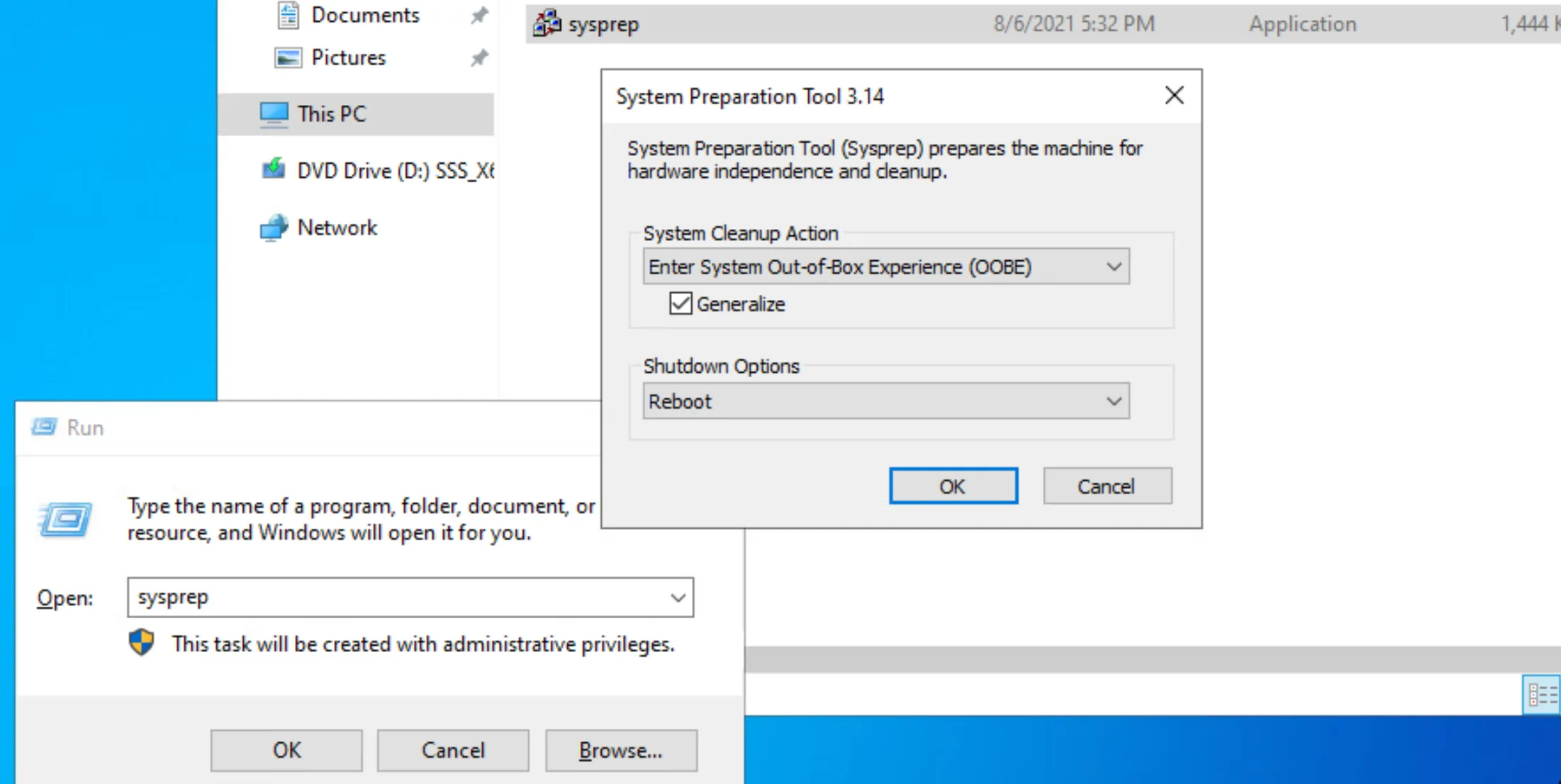
CMD: sysprep /generalize /oobe /shutdown
PowerShell: & "$env:SystemRoot\System32\sysprep\sysprep.exe" /generalize /oobe /shutdown
-
2
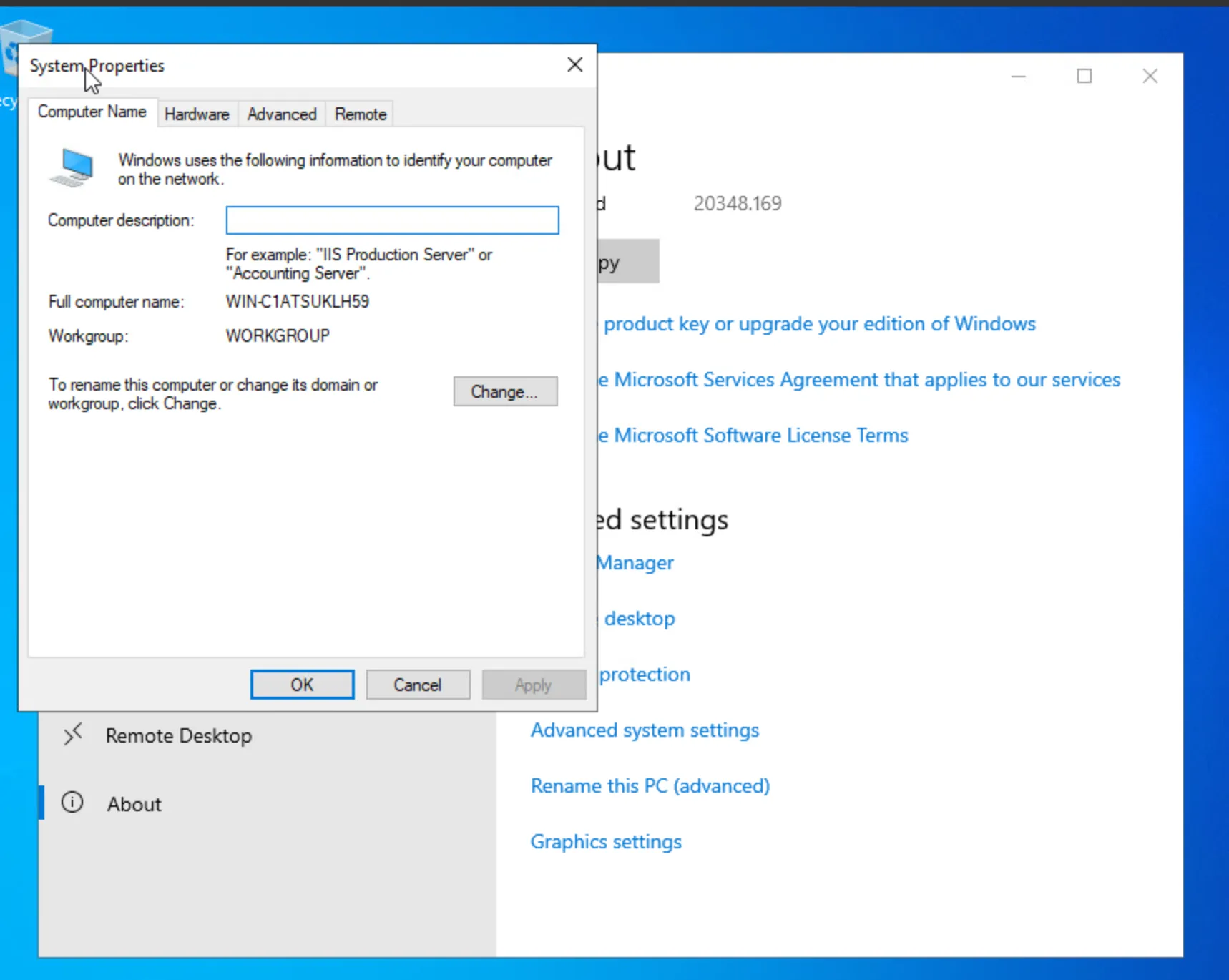
Change the Machine Name
Rename the machine to your server name.
-
3
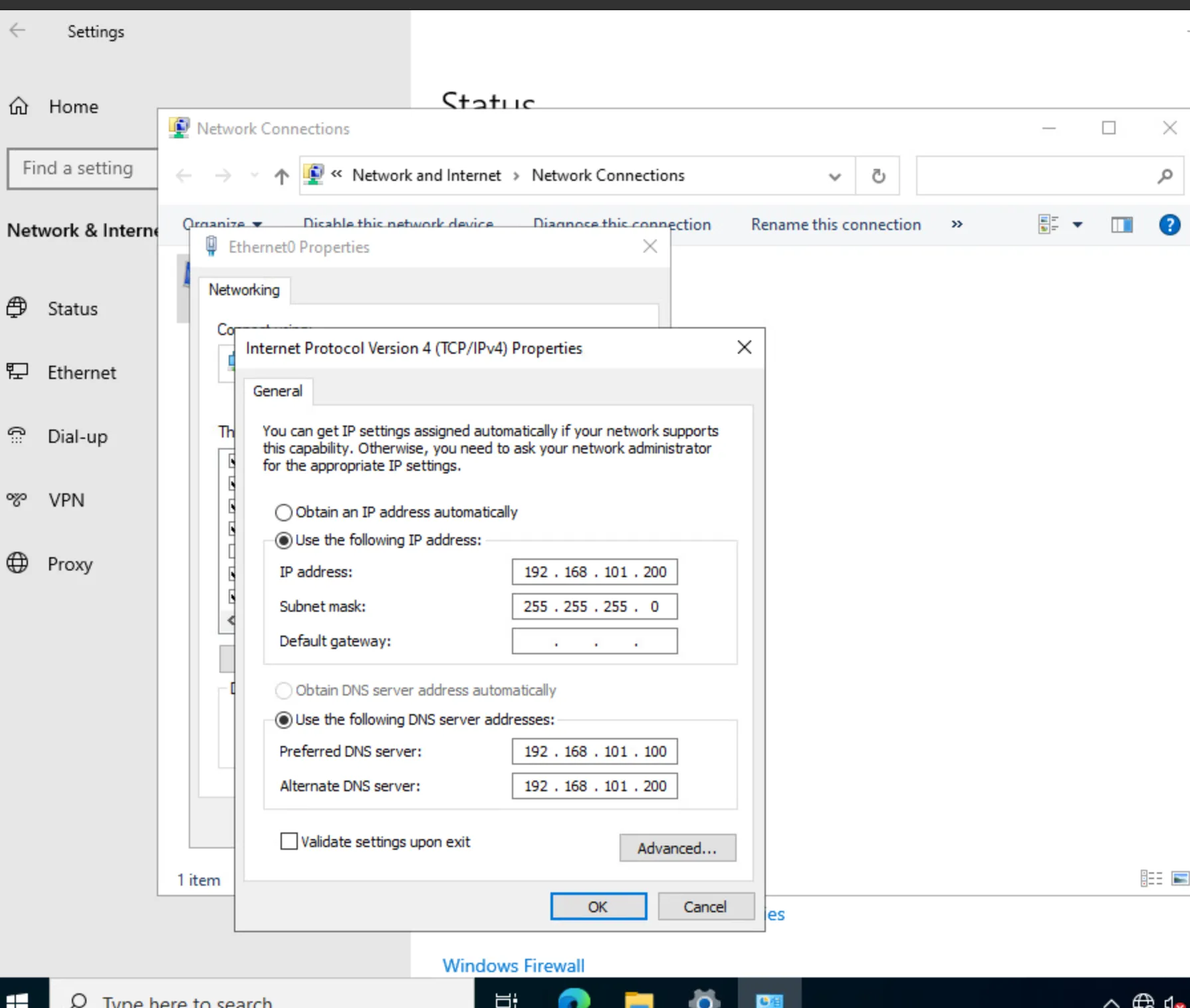
Assign IPs and DNS
Configure the network settings with the desired IP addresses and DNS servers.
-
4
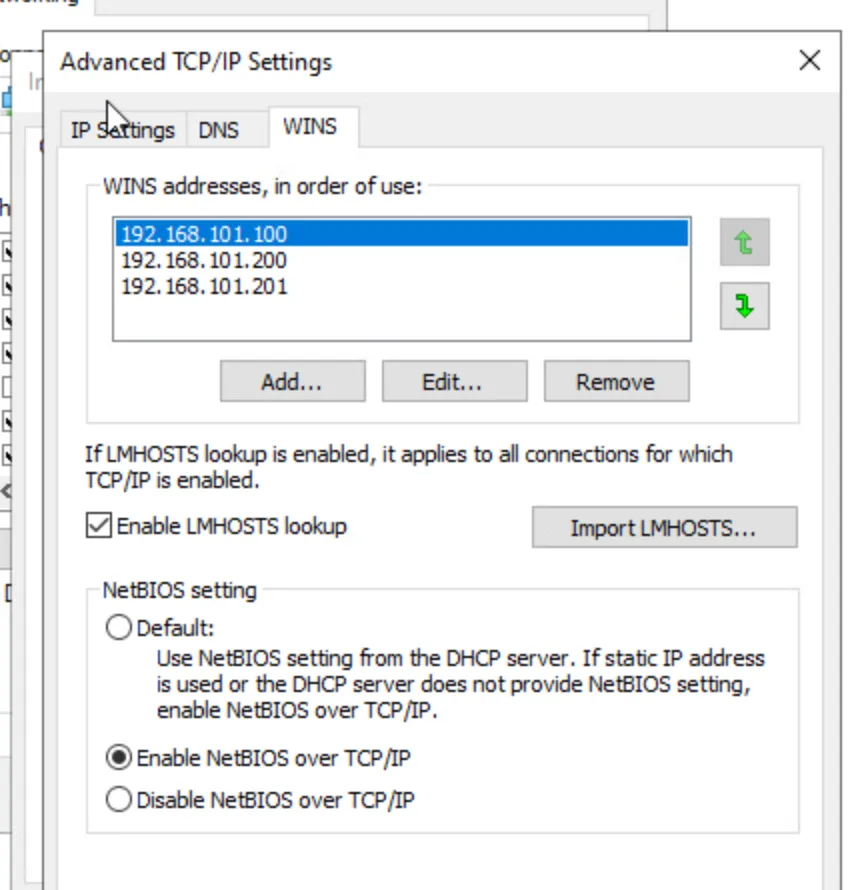
Configure WINS
Set up WINS with the appropriate settings.
-
5
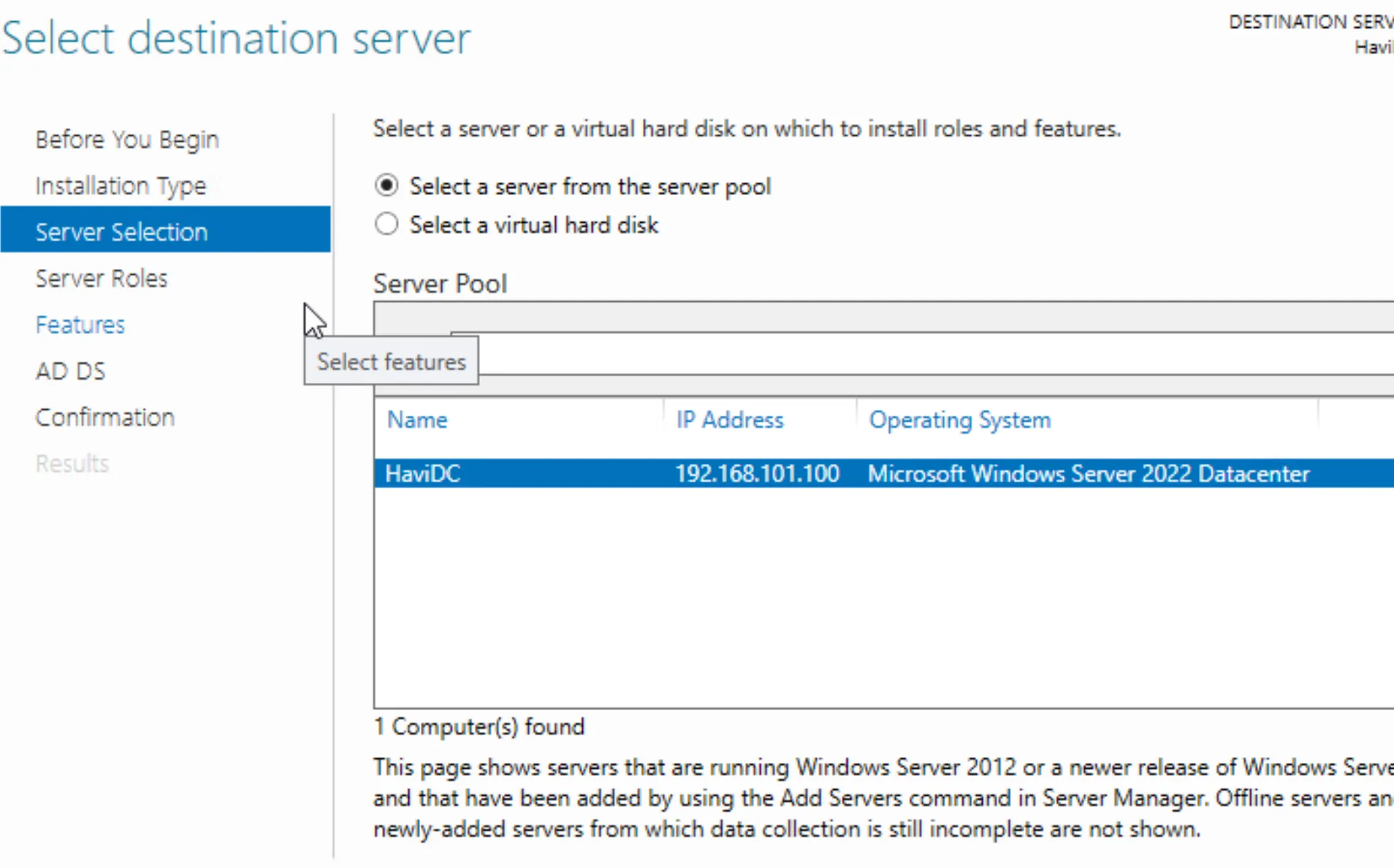
Deploy Active Directory Domain Services
Use Roles and Features to install Active Directory Domain Services.
-
6
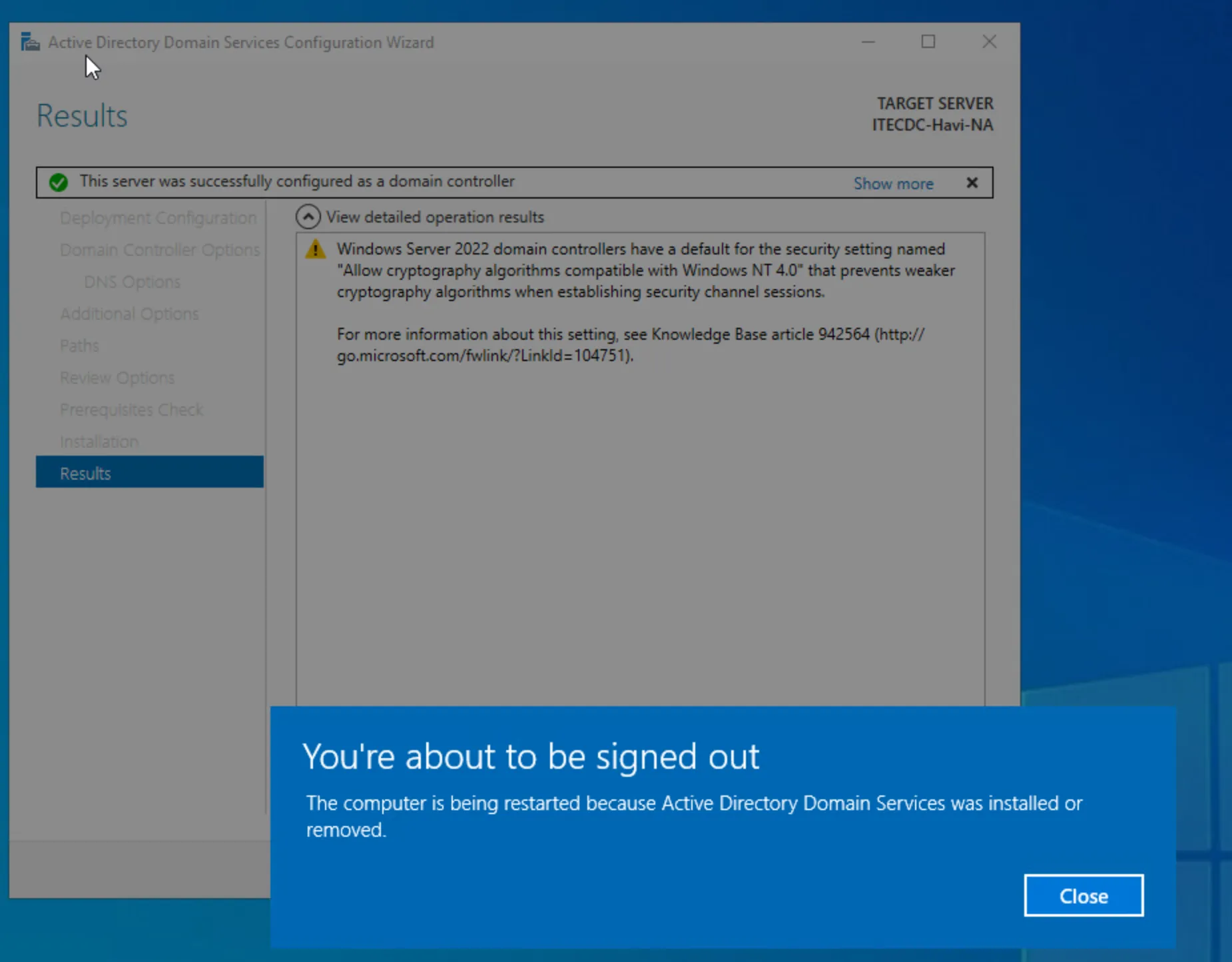
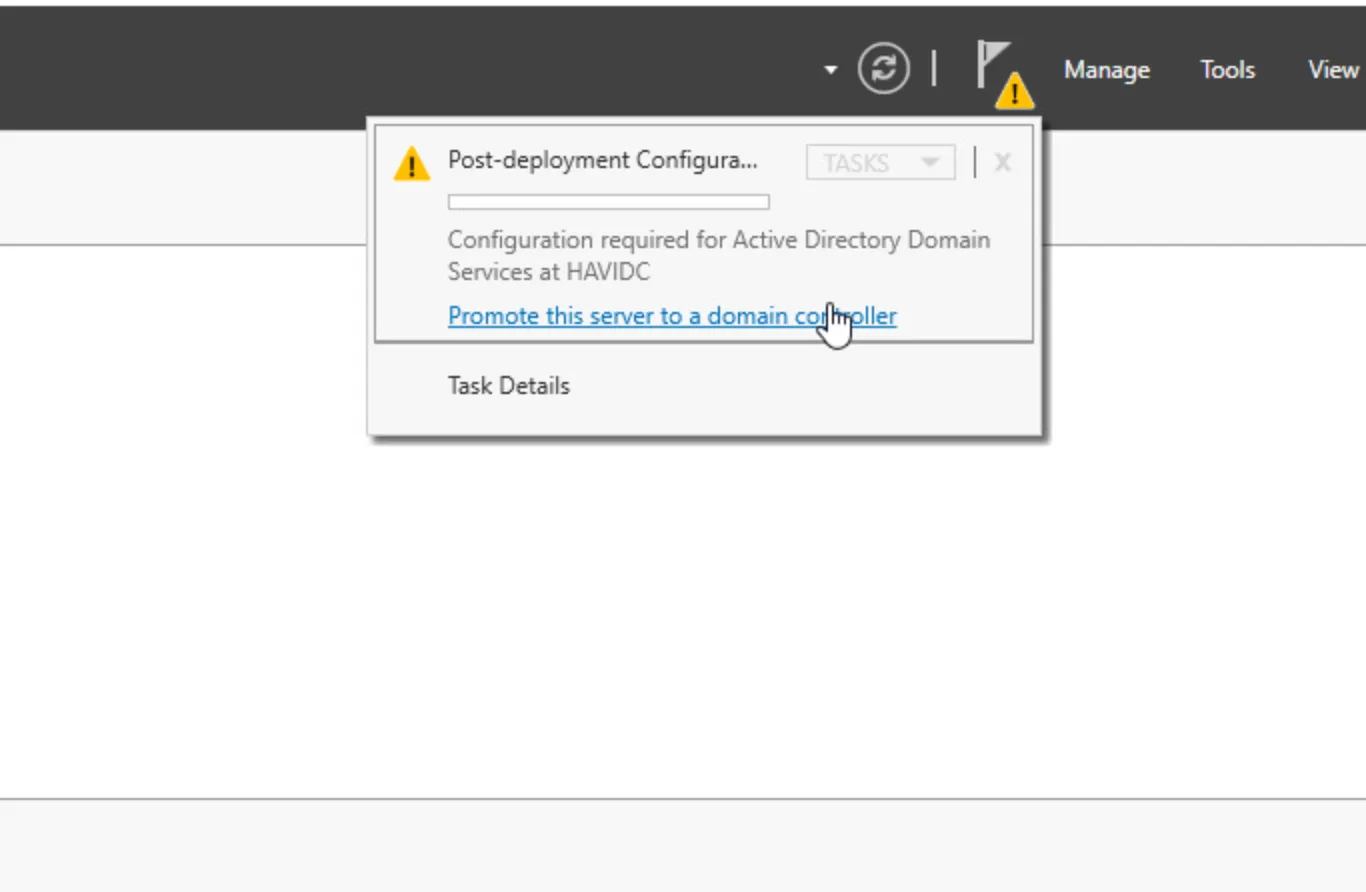
Promote the Server to a Domain Controller
Run the promotion process to elevate the server to a domain controller.
-
7
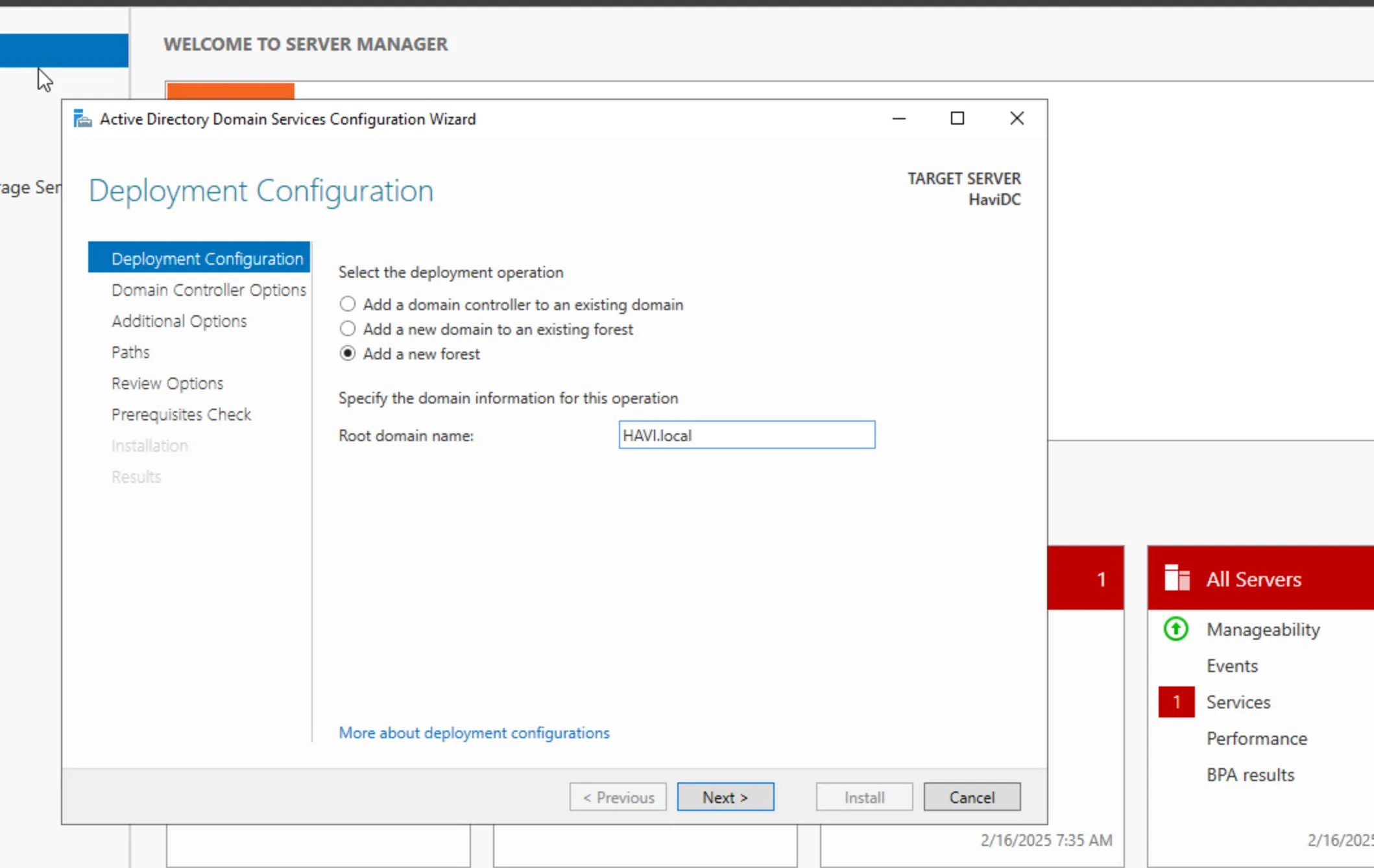
Create a New Forest
During the promotion, opt to create a new forest.
-
8
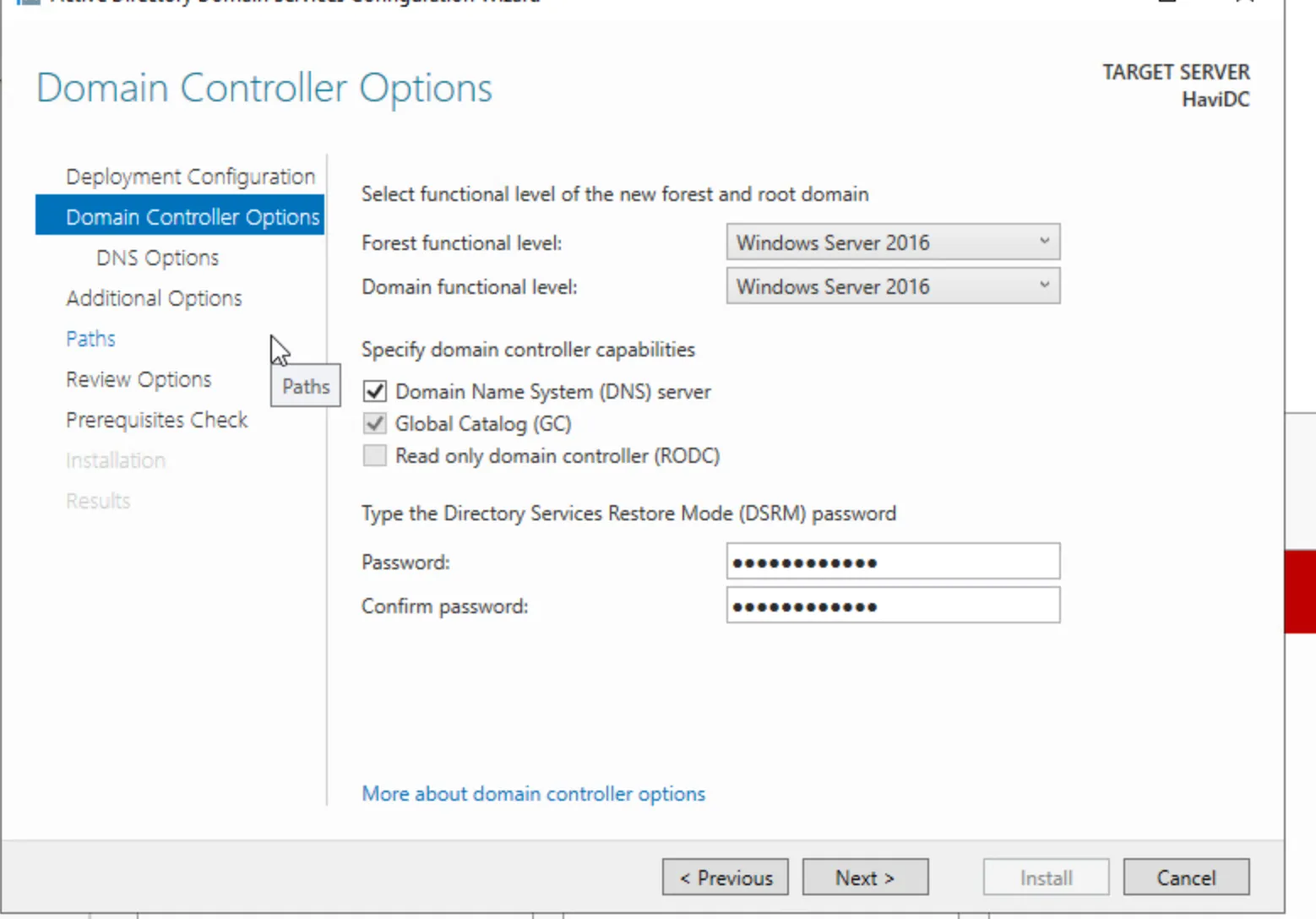
Set the Password and Use Default Settings
Create the DSRM password and continue with the default configurations.
-
9
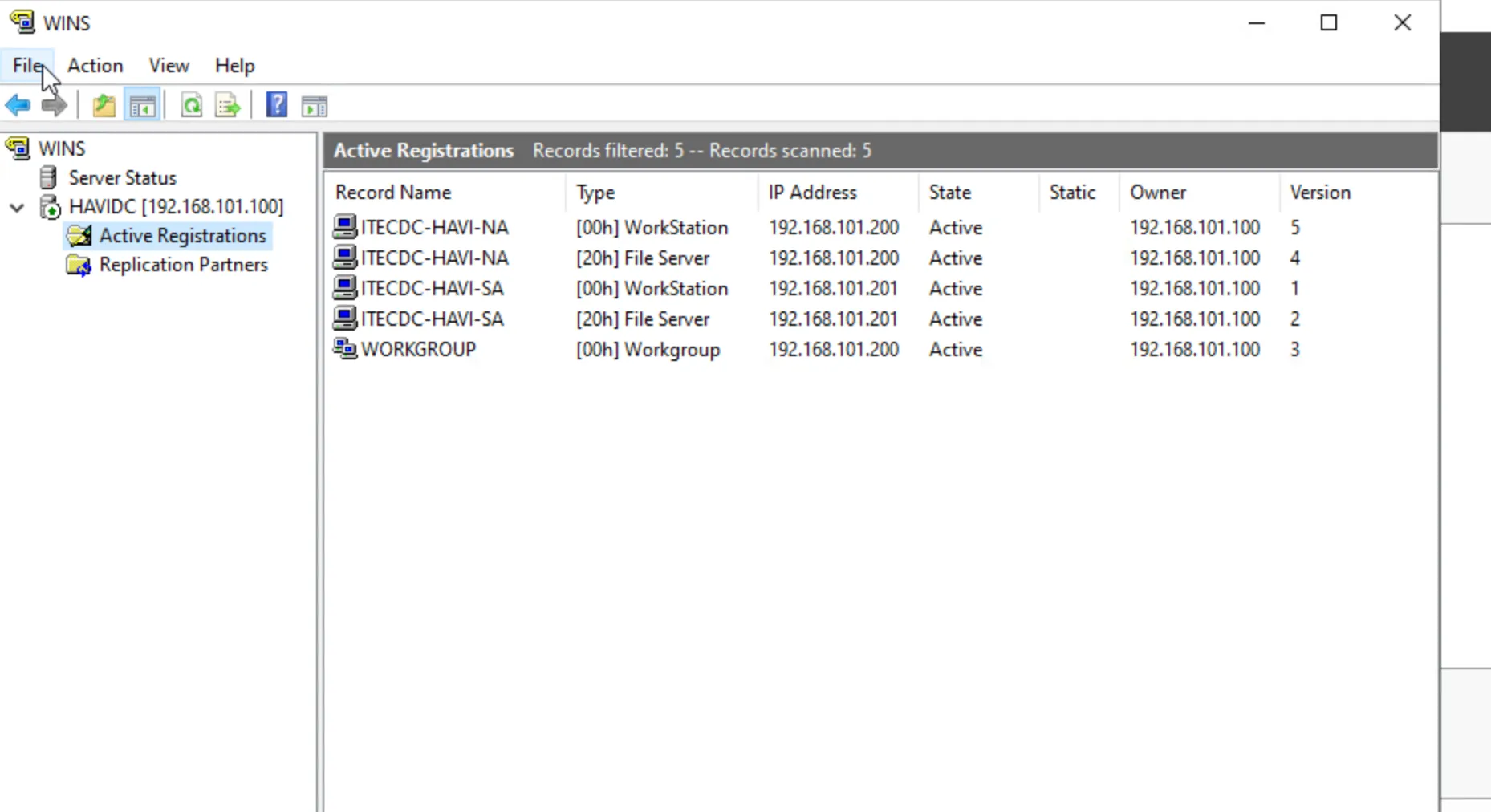
Verify WINS Connections
After a few minutes, check WINS to see the connected servers.
-
10
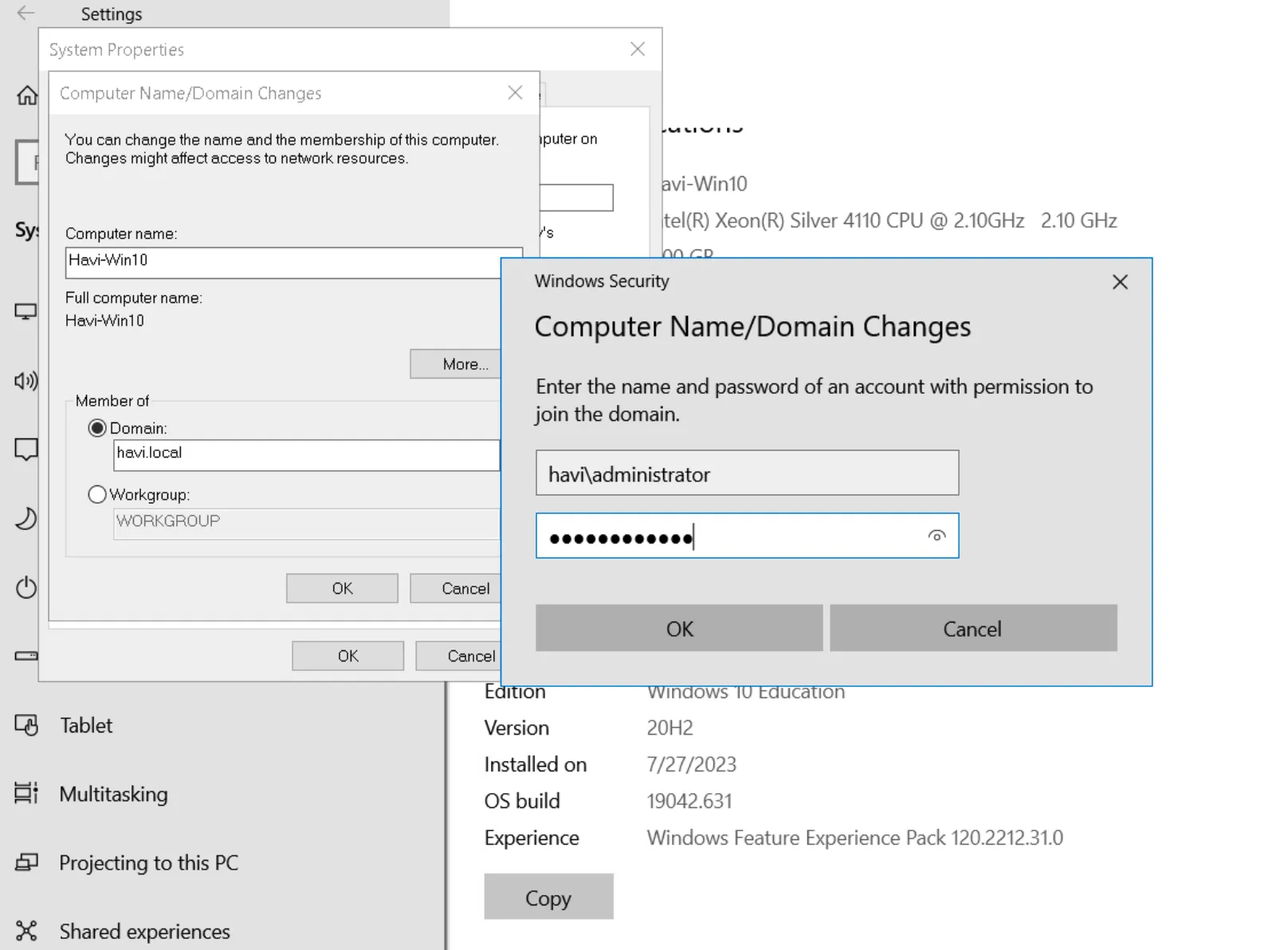
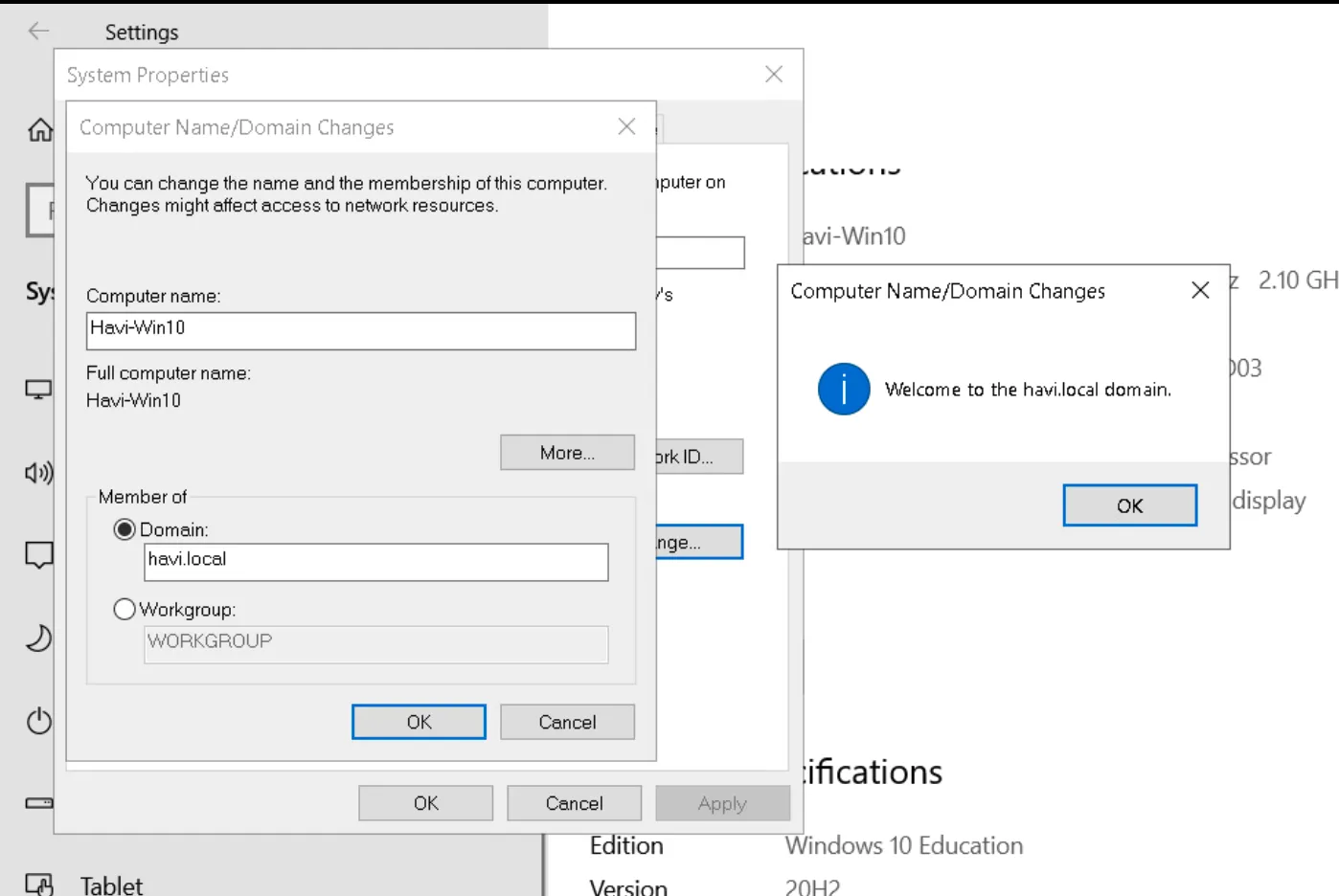
Join a Windows Machine to the Domain
On a Windows client, join the domain.
-
11
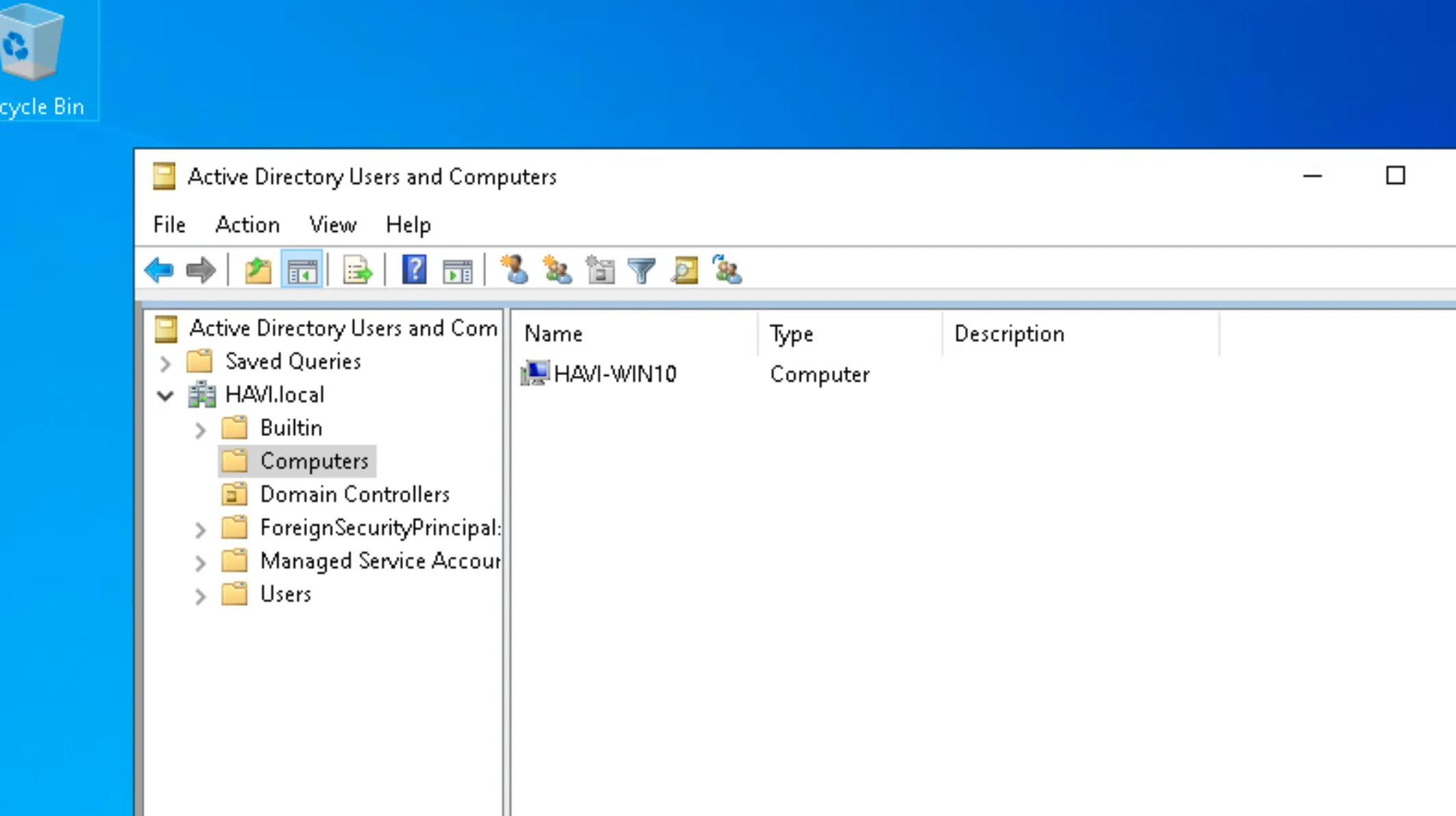
Confirm the Connection
Verify on the domain controller that your machine is connected.
-
12
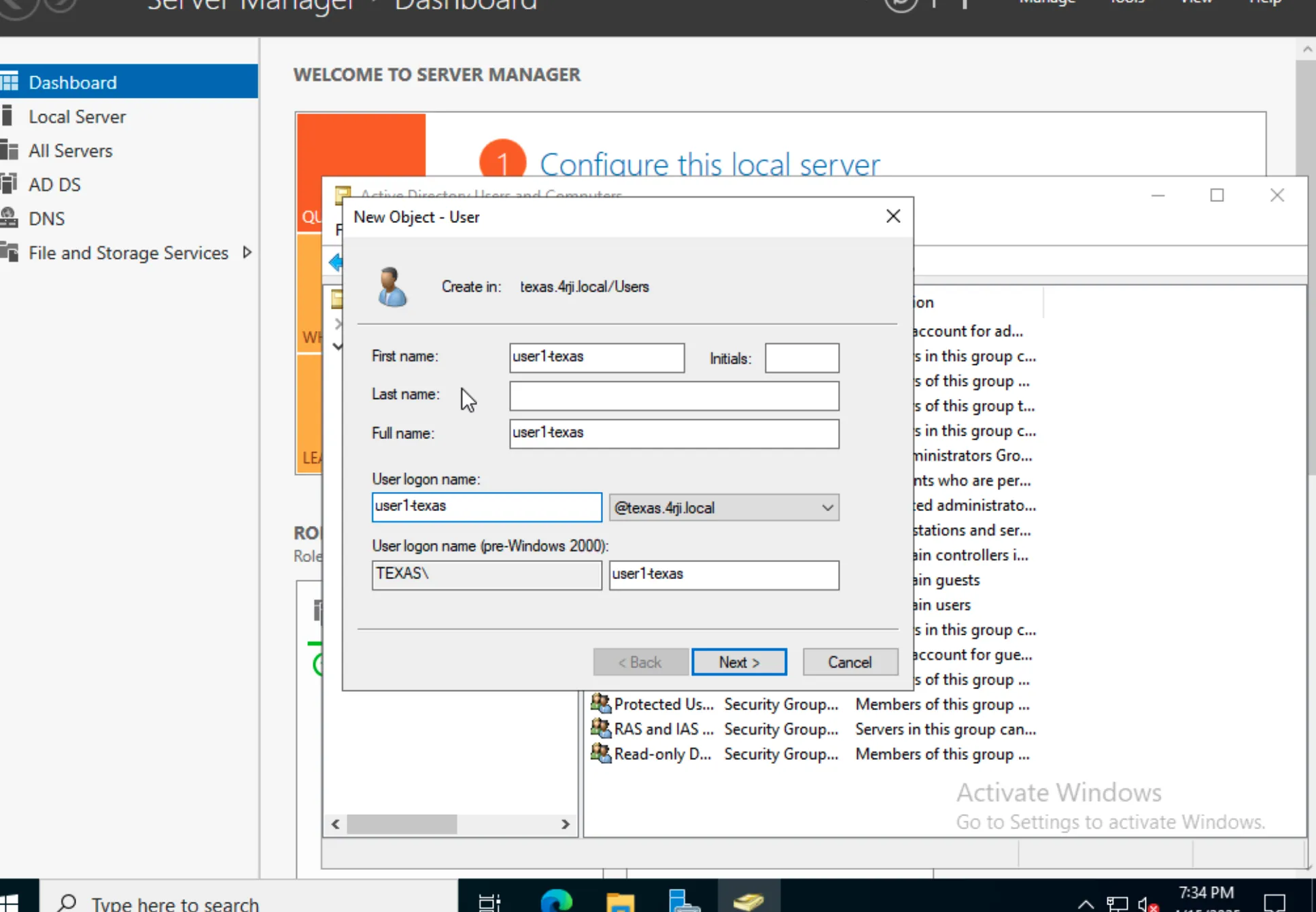
Add New User to Domain
To log in as a user, you need to add a new user to the domain first.
-
13
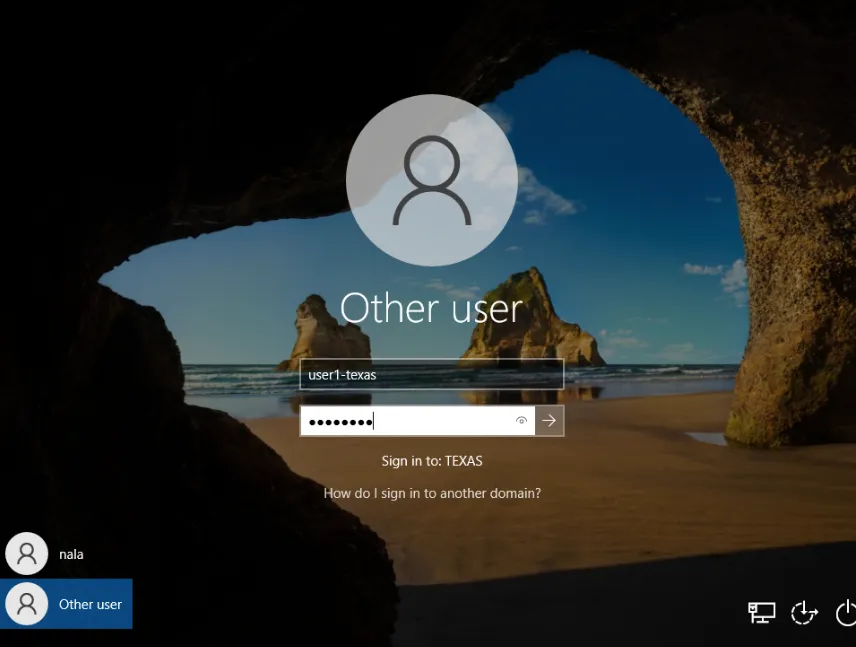
Log In with New User
Use the "Other user" option and enter the credentials of the newly created user.
-
14
Log In
You can now log in to the domain (diferent from texas this exemple).
Adding an Additional Active Directory to the Forest
After successfully installing the first Active Directory, the next step is to integrate an additional AD into the existing forest. This process enhances redundancy, improves load balancing, and ensures better failover capabilities within the network infrastructure.
Step-by-step guide to configuring AD in North America and South America subdomains
-
1
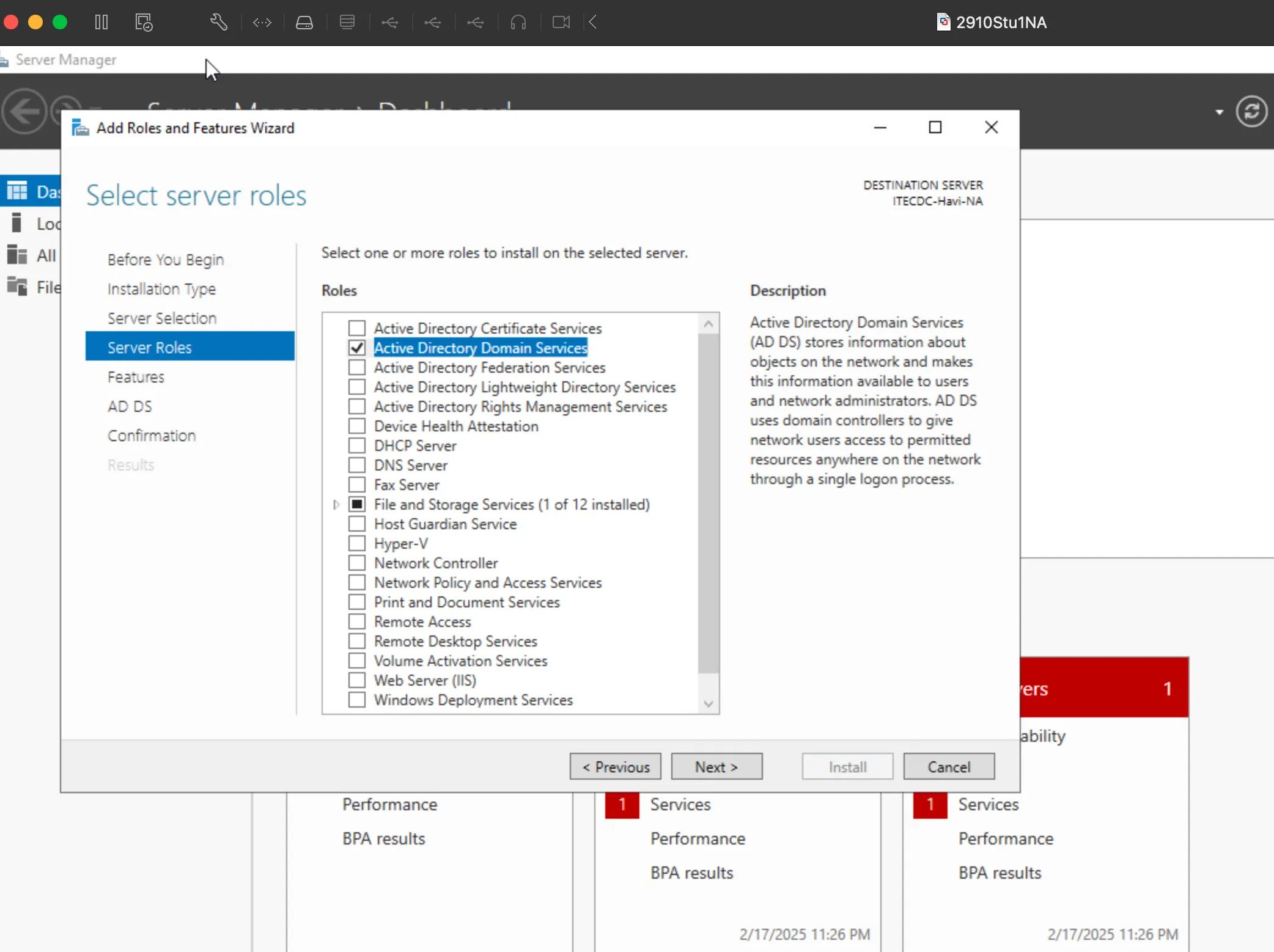
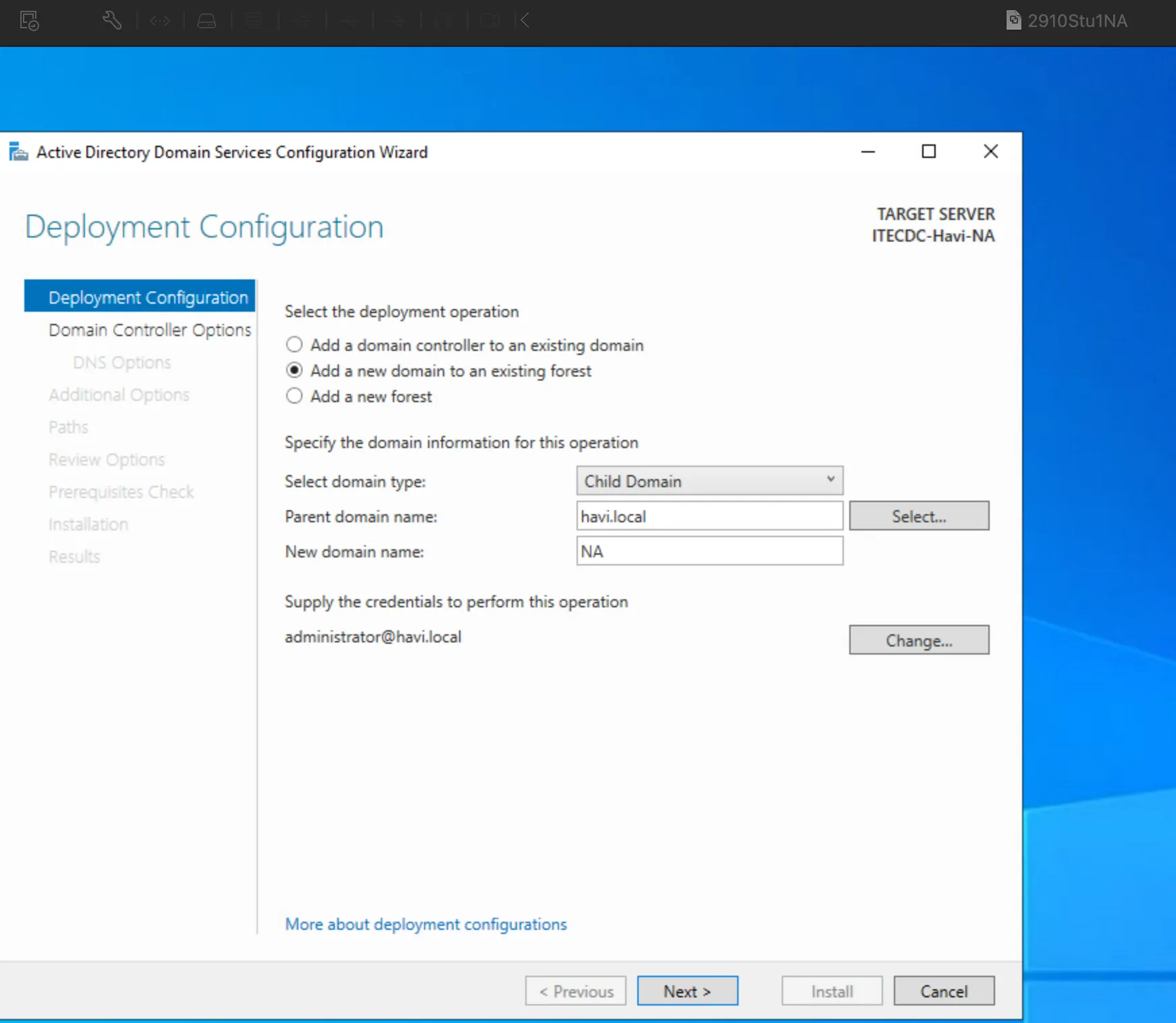
Create AD in North America Subdomain
Set up Active Directory on the Windows Server 2022 machine for the North America subdomain.
-
2
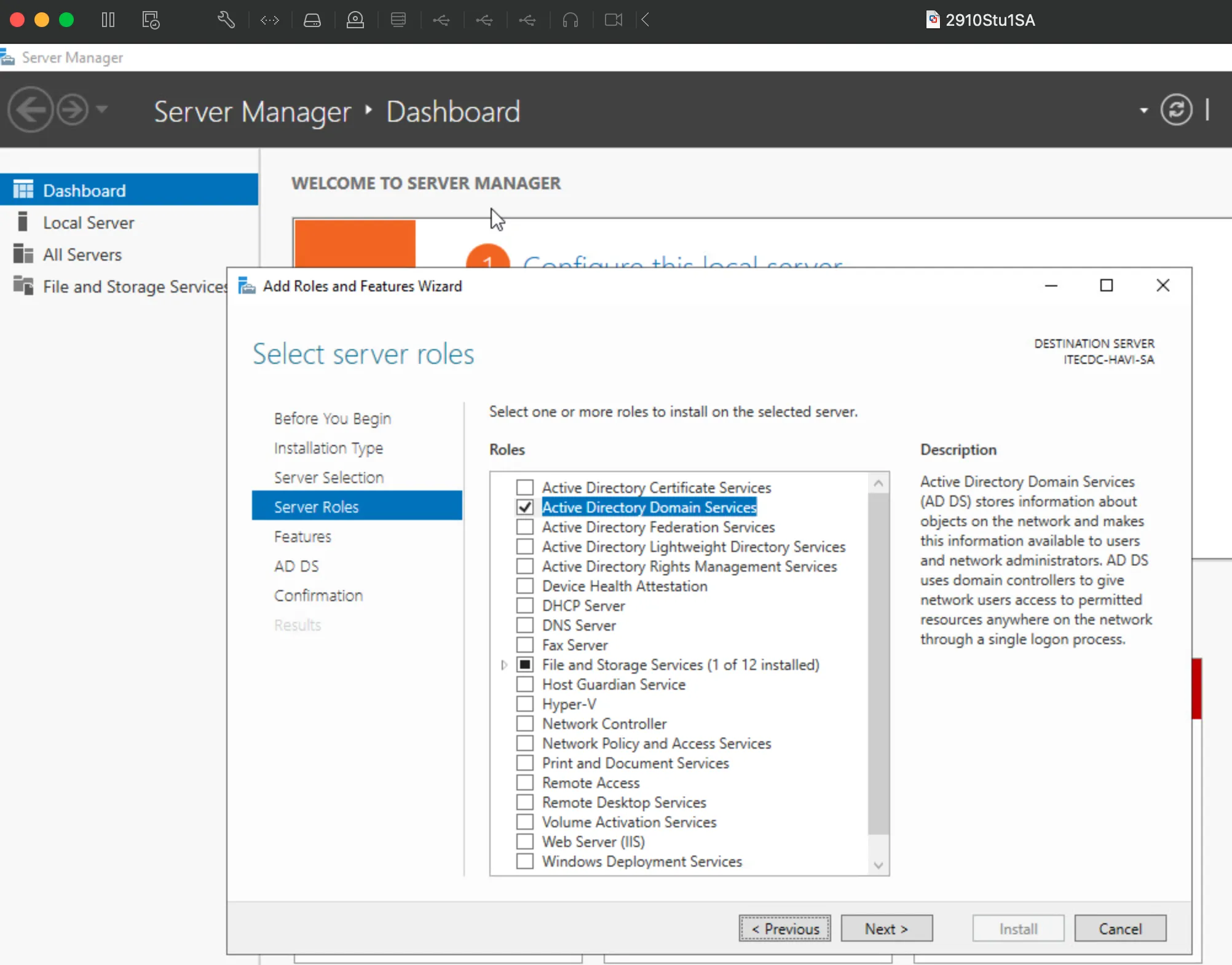
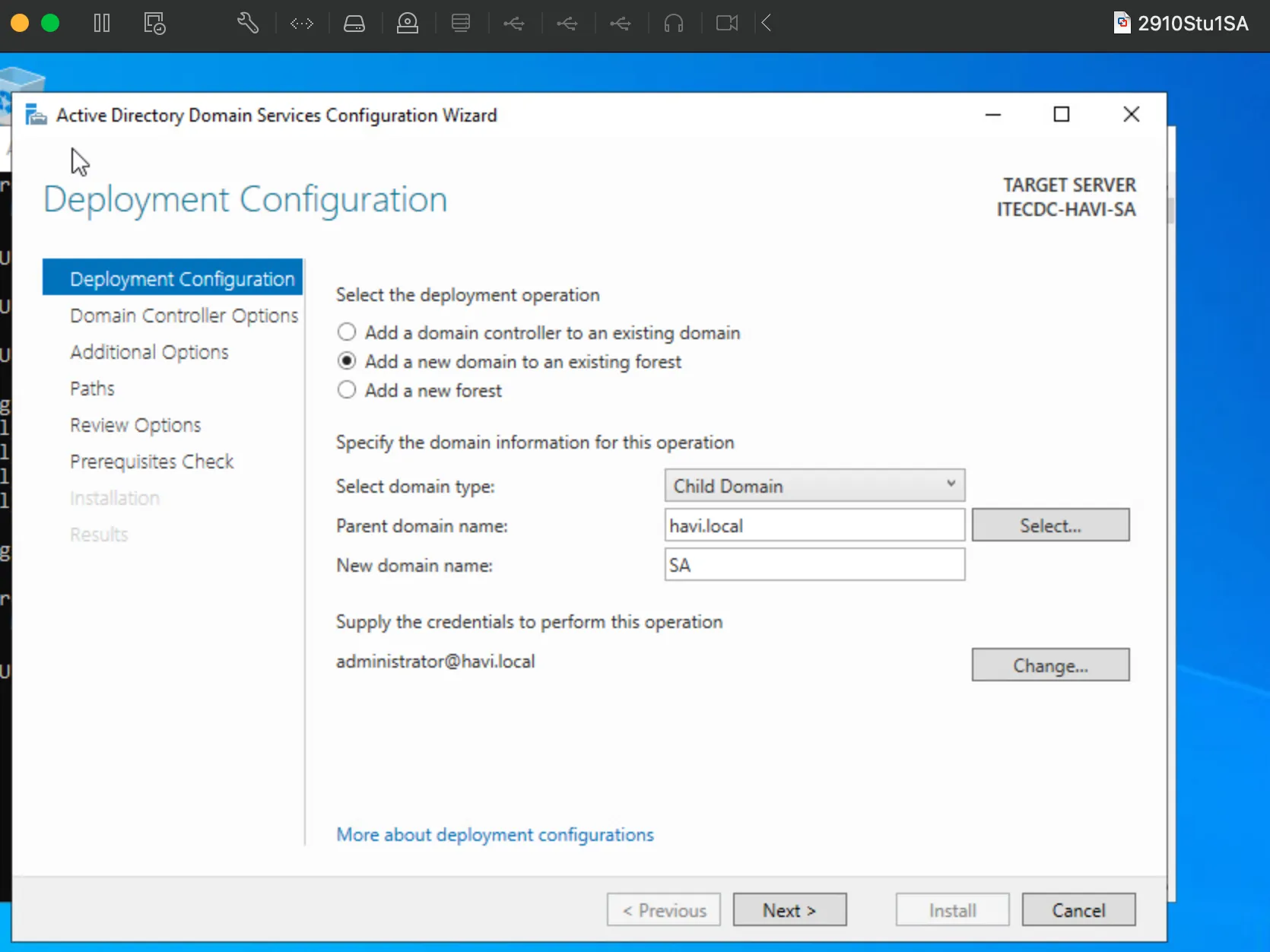
Create AD in South America Subdomain
Repeat the same process on the Windows Server 2022 machine for the South America subdomain.
-
3
Add NA and SA to the Main Server
Using the command prompt, add both the North America (NA) and South America (SA) subdomains to the main server, providing the necessary credentials.
-
4
Server Reboot
After adding the subdomains, the server will restart to apply the changes.
-
5
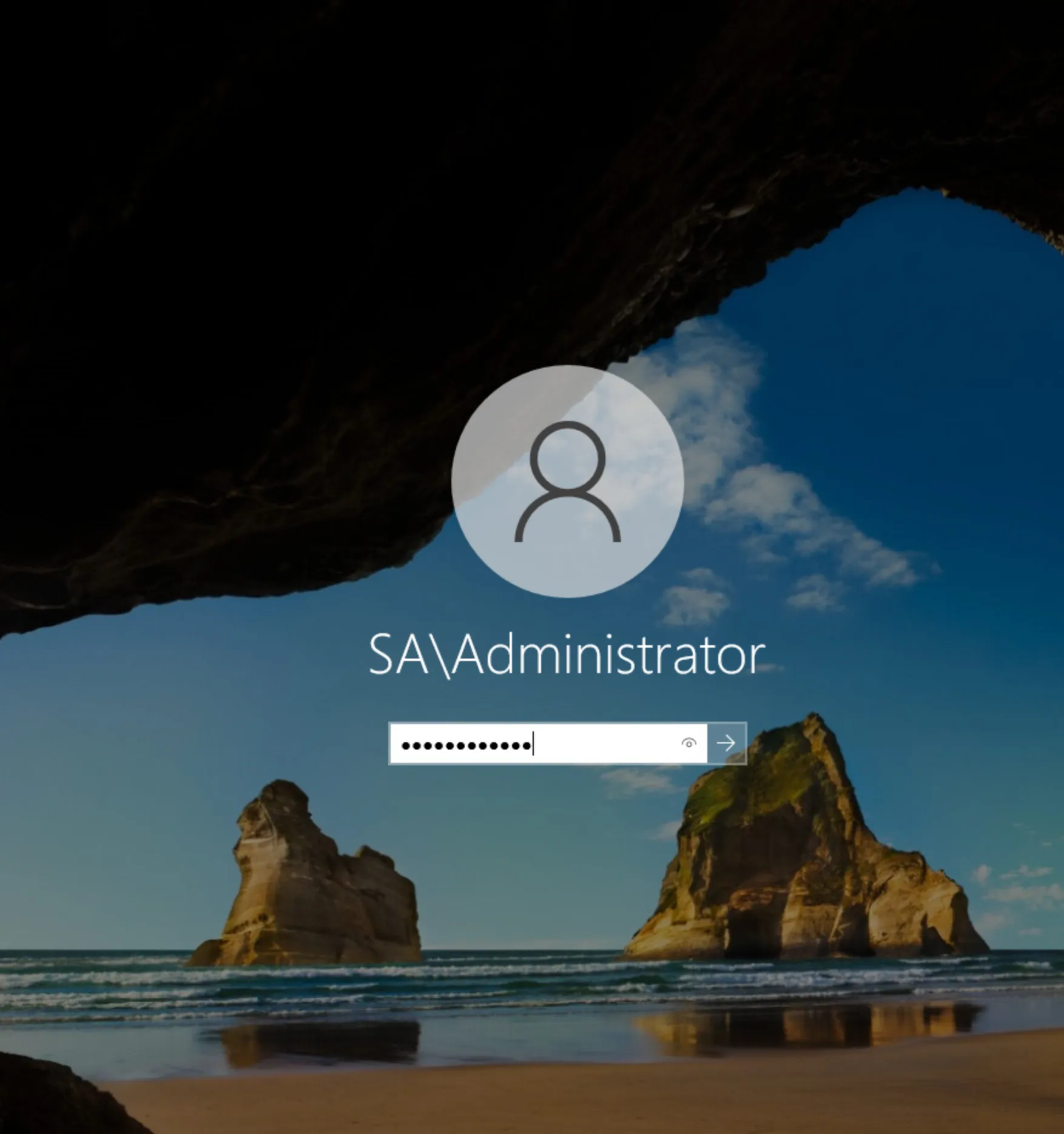
Verify Subdomain Login
Check that the subdomain names (NA and SA) appear in the login screen, confirming successful integration.
-
6
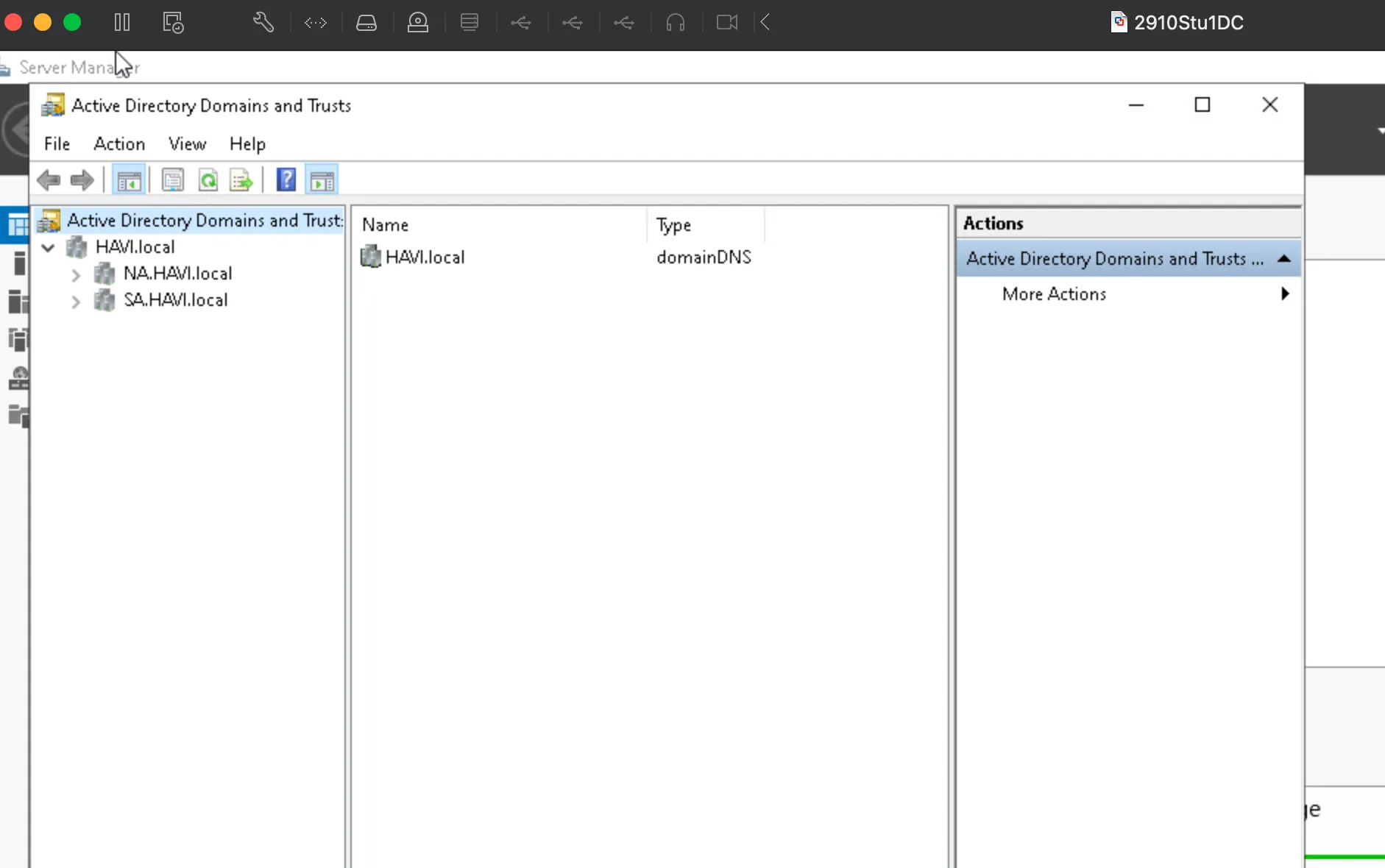
Confirm in Forest Server
On the main Forest server, verify that both newly added domains are now visible.